If you’re seeing a Pragmata Fatal D3D error on PC, or the game is crashing with a black screen, a crash report tool message, or freezes tied to enabling DLSS, Frame Generation, or Path Tracing, the problem usually points to one of a handful of causes: GPU driver issues, DirectX 12 instability, NVIDIA Smooth Motion conflicts, corrupted game files, shader cache problems, or VRAM pressure. This guide breaks down each crash type and the fixes most likely to match your specific situation — so you’re not working through a generic list when a targeted fix exists.
Disclaimer: These fixes draw on official Intel driver release notes, NVIDIA’s Game Ready Driver documentation, Steam’s system requirements and support guidance, WCCFTech’s troubleshooting guide, and player-reported workarounds from Steam Discussions and ResetEra. Not every fix will work for every hardware configuration.
Quick Fixes to Try First
Start here if you’re troubleshooting a Pragmata Fatal D3D error before diving into the specific sections below:
- Restart the game and your PC
- Update your GPU driver (see sections below for version numbers)
- Verify Pragmata’s game files on Steam
- Disable Path Tracing and Frame Generation temporarily
- Turn off NVIDIA Smooth Motion in the NVIDIA app if crashes happen when toggling DLSS, Frame Generation, or Path Tracing (see dedicated section below)
- Close all overlays: Steam Overlay, Discord Overlay, NVIDIA Overlay, MSI Afterburner, RivaTuner
- Remove any GPU overclock or undervolt
- Lower texture quality and shadow settings if crashes are intermittent
- Clear or rebuild the shader cache
Update Your GPU Driver First
GPU drivers are one of the first things to rule out when diagnosing a Pragmata Fatal D3D error, DXGI_ERROR_DEVICE_REMOVED crash, or DirectX 12 instability.
NVIDIA: NVIDIA released GeForce Game Ready Driver 596.21 WHQL as the day-one driver for Pragmata. It specifically optimizes for the game’s Path Tracing, DLSS Multi Frame Generation, and DLSS Ray Reconstruction pipeline. If you’re running an older driver, the first step is updating to 596.21 or newer via the NVIDIA app or GeForce.com.
AMD: AMD added official Pragmata support in Adrenalin Edition 26.5.1, released May 6, 2026. If you installed an older Adrenalin build at launch, update to 26.5.1 or newer before testing other fixes. Steam lists AMD Radeon RX 6700 XT 12 GB as the minimum GPU required for ray tracing support, so Radeon users should also lower ray tracing and other GPU-heavy settings if crashes continue. Grab the latest Adrenalin Edition from AMD’s website.
Intel Arc: See the dedicated Intel section directly below — there is a specific driver fix documented for Pragmata crash-on-menu-load.
Intel Arc Users: Install Driver 32.0.101.8735 or Newer — This Is Your Fix
If you’re running any Intel Arc GPU or a laptop with Core Ultra integrated Arc graphics and getting a Pragmata Fatal D3D error or menu crash, this is the official first fix to try — Intel has formally documented it. For general gameplay help once you’re stable, see our Pragmata boss guide.
Intel’s release notes for driver 32.0.101.8735 (non-WHQL, released April 21, 2026) explicitly list the following as a fixed issue:
Pragmata (DX12) may experience application crash while loading into game menu.
This fix applies across all of the following Intel GPU groups:
- Intel Arc A-Series discrete graphics
- Intel Arc B-Series discrete graphics
- Intel Core Ultra Series 1 with built-in Intel Arc GPUs
- Intel Core Ultra Series 2 with built-in Intel Arc GPUs
- Intel Core Ultra Series 3 with built-in Intel Arc GPUs
This driver was issued specifically to address the Pragmata DX12 menu crash — it contains no new feature additions or support for other games. If you have an Arc GPU and the game crashes on the menu screen, this driver update is your primary fix. Download it from Intel’s Arc Graphics driver page or use Intel Driver & Support Assistant to detect your hardware.
A community workaround that existed before the driver fix involved deleting the game’s shader cache and config files. If you installed the driver and still see issues, that workaround remains worth trying (see the shader cache section below).
How to Fix the Pragmata Fatal D3D Error
The Pragmata Fatal D3D error typically surfaces with the DXGI_ERROR_DEVICE_REMOVED error code (0x887a0005), which means Windows lost connection to the GPU mid-session. This can happen for several reasons:
Cause 1: GPU driver timeout. The GPU hangs, Windows kills it, and DirectX 12 throws the device-removed error. A community-reported workaround involves adjusting Windows’ TDR (Timeout Detection and Recovery) delay. This is an advanced troubleshooting step only. Microsoft’s official documentation explicitly states that end users should not manipulate TDR registry keys outside of targeted testing or driver development. Back up your registry before proceeding, understand you are making a system-level change, and consider whether other fixes in this guide are a better starting point.
If you still want to try it:
- Press Win + R, type
regedit, and press Enter - Back up the registry first: File → Export, save a copy somewhere safe
- Navigate to
HKEY_LOCAL_MACHINE\SYSTEM\CurrentControlSet\Control\GraphicsDrivers - Right-click, select New > DWORD (32-bit) Value, and name it
TdrDelay - Set the value to 10 (Decimal)
- Restart your PC
This tells Windows to wait up to 10 seconds before declaring the GPU unresponsive, instead of the default 2 seconds. It does not fix the underlying instability but can prevent false-positive crashes when the GPU is under heavy load.
Cause 2: GPU overclock or undervolt. Pragmata runs on Capcom’s RE Engine, which has been reported as sensitive to GPU overclocks by both WCCFTech’s troubleshooting guide and player reports across RE Engine titles including Monster Hunter Wilds and Resident Evil Requiem. If you use an overclock or undervolt, return the GPU to stock settings while testing. Close MSI Afterburner, Precision X1, or any similar tool first.
Cause 3: VRAM pressure. The Pragmata Fatal D3D error can also be a sign of the GPU running out of video memory. The 8 GB threshold is meaningful specifically for ray tracing: Steam’s system requirements list 12 GB GPUs as the minimum for RT support, and at 1440p with RT or Path Tracing active, 8 GB VRAM cards can exceed their headroom. Higher resolutions, ray tracing, Path Tracing, and high texture settings can all increase VRAM pressure — lower these settings and test again.
Pragmata Crashes When Enabling DLSS or Path Tracing? Disable NVIDIA Smooth Motion First
Some NVIDIA users report that Pragmata crashes the moment DLSS, Frame Generation, or Path Tracing is toggled in the in-game settings — a pattern that can look like a Pragmata Fatal D3D error but is triggered by a settings conflict rather than a hardware fault. Several players on Steam Discussions say turning off Smooth Motion in the NVIDIA app global settings stopped the crash. This has not been officially confirmed by NVIDIA or Capcom, but it is one of the first things worth checking if this crash pattern matches your situation.
To disable Smooth Motion:
- Open the NVIDIA app
- Go to Graphics settings
- Find Smooth Motion and set it to Off
- Restart Pragmata
Several Steam users reported that turning Smooth Motion off stopped the crash on RTX 3080 Ti, RTX 4090, and other NVIDIA GPUs even when running driver 596.21.
Enabling Path Tracing or Frame Generation Crashes the Menu? Edit config.ini Directly
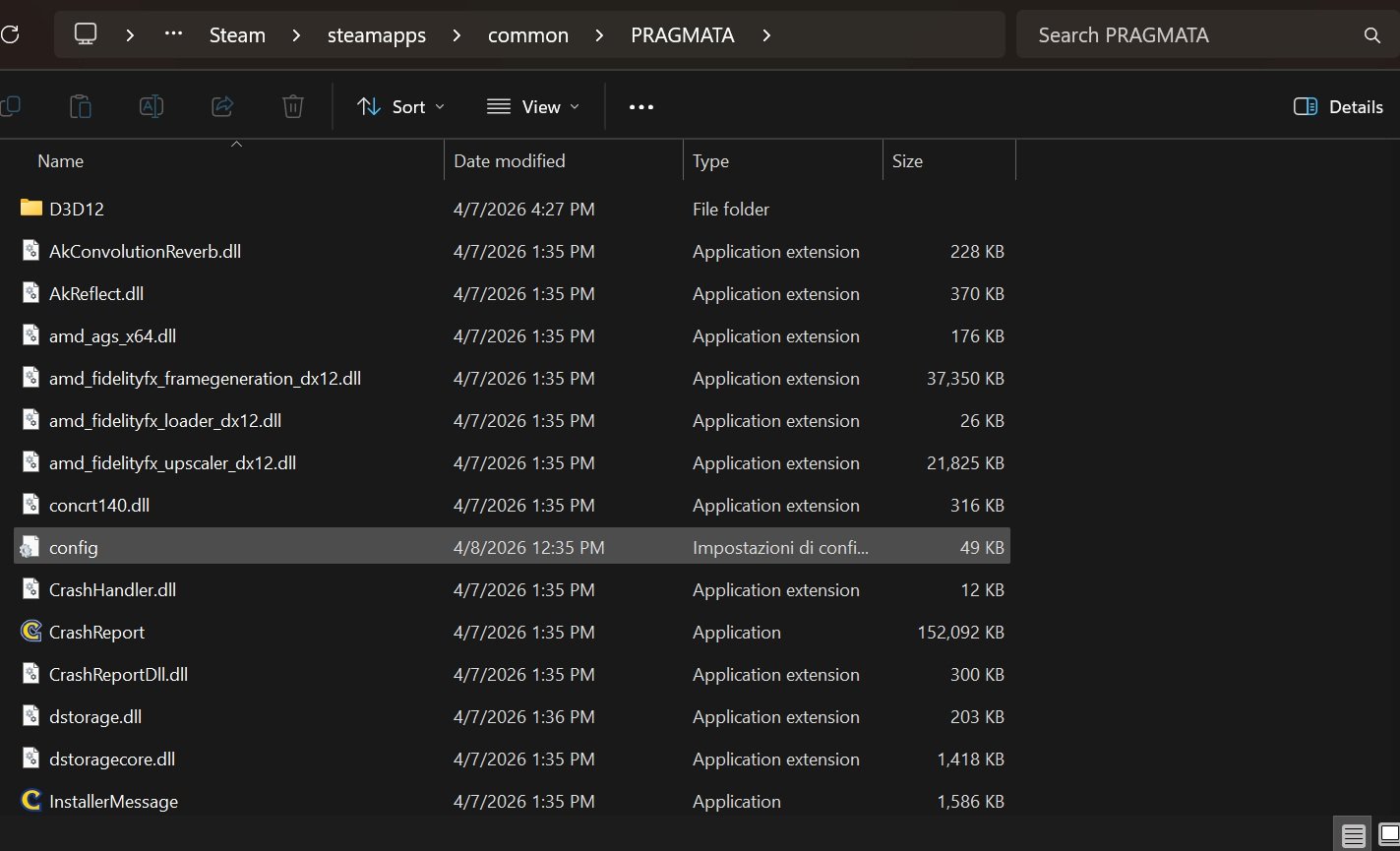
If toggling Path Tracing or Frame Generation in the in-game settings menu instantly crashes Pragmata to desktop (separate from the Smooth Motion issue above), you can bypass the in-game UI entirely by editing the game’s configuration file directly.
- In Steam, right-click Pragmata → Manage → Browse Local Files
- Locate config.ini in the installation folder and make a backup copy first
- Open config.ini with Notepad and look for lines relating to Path Tracing, Frame Generation, and DLSS/Upscaling settings
- Edit only lines that match those categories — the exact label names may vary between game versions, so change only entries you can clearly identify, and do not guess
- Save the file and start Pragmata without changing those settings in-game
This workaround was documented by WCCFTech based on player reports and allows the game to load with those features active without triggering the menu crash. Pair this with ensuring Smooth Motion is disabled in the NVIDIA app.
Turn Off Frame Generation If Pragmata Keeps Crashing or Stuttering
Frame Generation and DLSS Multi Frame Generation are high-demand features that can add extra GPU and frame-pacing workload. Beyond crash reports, some players on forums report that Frame Generation in Pragmata amplifies traversal stutter and creates microstutter during camera rotation on certain setups. Disabling Frame Generation and running the game uncapped or with VSync produces smoother frame pacing for some users, though results vary by hardware. While you troubleshoot, see all 15 weapons in Pragmata and where to find them so you’re ready when the game is stable.
If Pragmata crashes after enabling Frame Generation:
- Disable Frame Generation in-game or via config.ini
- Ensure NVIDIA Smooth Motion is off (see above)
- Test the game with only DLSS Super Resolution enabled and no Frame Generation
- If crashes stop, Frame Generation was likely one trigger on your setup — report it to Capcom with your GPU model, driver version, and exact error
Note: Standard DLSS Frame Generation is available on RTX 40 and 50 Series GPUs. DLSS Multi Frame Generation — which NVIDIA quotes at up to 3.1× performance multiplier — is exclusive to RTX 50 Series. RTX 40 Series users can use standard DLSS Frame Generation, but DLSS Multi Frame Generation settings are intended for RTX 50 Series hardware only.
Disable Path Tracing If Pragmata Keeps Crashing
NVIDIA describes Pragmata’s path-traced effects as part of the GeForce RTX PC feature set, and independent benchmark coverage confirms Radeon hardware cannot access the Path Tracing option in this title. Radeon users should treat standard ray tracing as the supported RT path unless Capcom or AMD state otherwise. Path Tracing is also the most GPU-intensive setting in the game and one reported trigger for crashes on some systems — particularly those under VRAM pressure, running an active GPU overclock, or on hardware at the lower end of the ray tracing requirement.
Steam’s official system requirements note that ray tracing alone requires at minimum an AMD Radeon RX 6700 XT 12 GB or NVIDIA GeForce RTX 3060 12 GB — and Path Tracing demands significantly more than basic ray tracing. If you’re on a card with 8 GB or 10 GB of VRAM, Path Tracing at higher resolutions may exceed your VRAM headroom and contribute to instability.
If Pragmata crashes after enabling Path Tracing:
- Disable Path Tracing in-game, or set
PathTracing=OFFin config.ini - Test the game in standard ray tracing mode or with ray tracing off entirely
- If the game becomes stable, Path Tracing was likely one of the triggers on your setup — try re-enabling it only with DLSS set to Performance mode to reduce the rendering workload
For help building the best setup once you have the game running cleanly, see our Pragmata best loadout guide.
AMD Radeon users: Path Tracing is not available on AMD hardware in Pragmata. AMD users have access to standard ray tracing and FSR upscaling.
Verify Pragmata Game Files on Steam
Corrupted installation files — from a partial download, failed update, or shader cache mismatch — can cause a Pragmata Fatal D3D error on startup or crashes during shader compilation. Steam’s file verification checks whether the game’s files are installed correctly and reacquires missing or corrupted files. Steam’s own support documentation covers the full process.
- Open Steam and go to your Library
- Right-click PRAGMATA → Properties → Installed Files
- Click Verify integrity of game files
- Wait for the scan to complete (this may take several minutes)
- Restart the game after verification finishes
Steam’s own support documentation notes that one or more files may fail to verify — this is normal for most games and refers to local configuration files that Steam intentionally skips. You can safely ignore that message.
Clear Shader Cache or Let Shaders Rebuild
Crashes that occur specifically during startup, on the loading screen, or during the game’s shader compilation phase often point to a corrupt shader cache rather than a driver or hardware issue. Clearing the cache forces the game to rebuild shaders from scratch.
NVIDIA:
- Open NVIDIA Control Panel → Manage 3D Settings
- Set Shader Cache Size to Unlimited, which may help reduce cache-related stutter or rebuild issues on some systems
- To clear the existing cache, navigate to
%LocalAppData%\NVIDIA\GLCacheand delete the contents
AMD:
- Open AMD Adrenalin
- Go to Graphics → Advanced → Reset Shader Cache
After clearing, launch Pragmata and allow it to compile shaders fully on the first startup before loading into the game. Do not alt-tab or interrupt this process.
One player on Steam reported that deleting both the shader cache and the config.ini file resolved crashes that occurred after switching the DLSS mode — the game had written a bad config state after the initial crash, and clearing it allowed a clean restart.
Lower VRAM-Heavy Graphics Settings
If Pragmata crashes intermittently — especially during intense scenes, open areas, or scenes with heavy reflections — VRAM pressure is a possible contributor. Cards with 8 GB of VRAM meet the recommended spec for standard 1080p/Balanced play, but Steam lists 12 GB GPUs as the minimum required for ray tracing support. Enabling RT or Path Tracing on an 8 GB card at 1440p can push VRAM beyond its limit and cause intermittent hitching or crashes.
Settings to lower if VRAM pressure is suspected:
- Texture Quality — drop one level and test again
- Shadow Quality — High to Medium
- Shadow Cache — Reduce if available
- Ray Tracing — Disable or use Standard RT instead of Path Tracing
- Resolution Scale / DLSS Mode — Switch from Quality to Balanced or Performance to lower the internal render resolution
- DLSS Frame Generation — Disable to reduce driver overhead
Setting the shader cache to Unlimited in NVIDIA Control Panel (or the equivalent in AMD Adrenalin) may help in some cases by reducing how often the GPU has to recompile shaders as the cache fills, though it is not a guaranteed crash fix.
Disable Overlays and Background Tools
Background tools that hook into DirectX 12 — or that generate their own overlays on top of the game — are a common source of crash-on-launch and mid-game crash reports for RE Engine games, and can contribute to a Pragmata Fatal D3D error even when the GPU driver itself is stable. Close all of the following before launching Pragmata if you’re experiencing crashes:
- Steam Overlay (right-click Pragmata in Steam → Properties → uncheck “Enable the Steam Overlay while in-game”)
- Discord Overlay
- NVIDIA Overlay (via NVIDIA app settings)
- MSI Afterburner and RivaTuner Statistics Server
- OBS Studio, Streamlabs, or other recording/streaming tools
- FPS counters and monitoring tools (HWiNFO overlay, RTSS)
- Lossless Scaling or any third-party frame generation tool
One Steam user confirmed that opening Discord mid-session caused both Pragmata and Streamlabs to crash simultaneously, suggesting Discord’s overlay hooking into DX12 was the trigger. Test the game with all overlays completely disabled before re-enabling them one at a time.
Remove GPU Overclocks and Undervolts to Fix Pragmata Fatal D3D Errors
As mentioned in the Fatal D3D section, player reports and troubleshooting guides frequently point to GPU overclocks as a crash factor in RE Engine games. Because Pragmata runs on the same engine, testing at stock clocks is a standard first step when debugging a Pragmata Fatal D3D error or device-removed crash. This applies to both overclocks (which push the GPU beyond stable limits) and undervolts (which can cause instability under high-sustained load).
If you have an active overclock or undervolt profile:
- Close MSI Afterburner, Precision X1, or AMD Adrenalin’s tuning features
- Restore all GPU clocks to default (stock)
- Restart your PC and test Pragmata before re-applying any profile
Pragmata’s GPU load under Path Tracing in particular is sustained and high — even a mild overclock that is stable in other games can fail under this kind of workload.
What If Nothing Works?
If you’ve worked through all of the above and Pragmata still crashes:
- Check for patches and driver updates. Intel shipped a dedicated non-WHQL hotfix within days of launch specifically for the Pragmata menu crash on Arc hardware, and AMD added official game support in Adrenalin 26.5.1. Keep your GPU driver current and watch the Pragmata Steam community page for patch notes.
- Report persistent crashes with full details. Include your GPU model and VRAM, CPU, RAM amount, Windows version, driver version, exact error code (such as DXGI_ERROR_DEVICE_REMOVED or E_OUTOFMEMORY), and the exact circumstances that trigger the crash (startup, enabling Path Tracing, changing Frame Generation, specific area of the game). Submit through the relevant support channels: Capcom’s Steam community, NVIDIA’s driver feedback, AMD’s support site, or Intel’s Arc driver page.
- Use a conservative preset temporarily. Switch to the Balanced or Performance preset with Path Tracing and Frame Generation disabled. These presets are designed to run on a wider range of hardware and are less likely to hit driver or VRAM edge cases.
- Avoid Path Tracing and Frame Generation until stability improves. Standard ray tracing with DLSS Super Resolution is substantially less demanding and is a less demanding fallback on supported RTX hardware. Once your Pragmata Fatal D3D error is resolved and the game is stable, see our guide on how to beat the Sector Guard in Pragmata to get back into the action.
Frequently Asked Questions
What causes the Pragmata Fatal D3D error? A Pragmata Fatal D3D error most commonly points to GPU driver instability, DirectX 12 device timeouts (DXGI_ERROR_DEVICE_REMOVED), NVIDIA Smooth Motion conflicting with DLSS, Frame Generation or Path Tracing stress, corrupted game files or shader cache, VRAM exhaustion, or GPU overclocking software interfering with the RE Engine. Intel Arc users have a specific documented driver bug that was patched in driver 32.0.101.8735.
How do I fix Pragmata crashing on startup? Update your GPU driver, verify Steam game files, disable all overlays, clear the shader cache, and use the default graphics preset. If you’re on Intel Arc hardware, install driver 32.0.101.8735 or newer. If the crash began after switching DLSS modes, delete the config.ini file and let the game regenerate it.
Why does Pragmata crash when I enable DLSS or Frame Generation? One reported cause on NVIDIA hardware is Smooth Motion being enabled in the NVIDIA app global settings. Several players report that Pragmata crashes the moment DLSS or Path Tracing is toggled while Smooth Motion is active globally, and that disabling it stopped the crash. This has not been officially confirmed by NVIDIA or Capcom, but it is one of the first things worth checking before other steps.
Does Path Tracing cause Pragmata crashes? It can on some systems, particularly those under VRAM pressure or running the game with an active GPU overclock. NVIDIA describes Pragmata’s path-traced effects as part of the GeForce RTX PC feature set, and its use is paired with DLSS Ray Reconstruction to help manage the performance cost. Steam’s system requirements note that even basic ray tracing requires at least an RTX 3060 12 GB or RX 6700 XT 12 GB.
What is the Intel Arc Pragmata crash fix? Install Intel graphics driver 32.0.101.8735 or newer. Intel’s official release notes document a fixed issue where Pragmata (DX12) crashed while loading into the game menu. The fix covers Arc A-Series, Arc B-Series, Core Ultra Series 1, Core Ultra Series 2, and Core Ultra Series 3 GPUs.
Should I verify Pragmata files on Steam? Yes. Steam’s verify feature checks whether the game’s installed files are correct and reacquires any that are missing or corrupted. Corrupted files from a failed download or shader cache mismatch can cause startup crashes or crashes during shader compilation. Run it from Pragmata → Properties → Installed Files → Verify integrity of game files.
Why is Frame Generation causing stuttering in Pragmata? Some players report that Frame Generation can amplify traversal stutter or camera microstutter on certain setups. Disabling Frame Generation and running with an FPS cap via VSync or an external limiter instead of NVIDIA Reflex cap has helped some users, though results vary by hardware.
More Pragmata Guides
Once your crashes are resolved and the game is running, these guides will help you get the most out of it:
- Pragmata Boss Guide — full breakdown of every boss encounter
- How to Beat the Sector Guard in Pragmata — tips for one of the toughest fights
- All 15 Weapons in Pragmata and Where to Find Them — complete weapons location guide
- Pragmata Best Loadout — recommended builds for every play style