Pragmata is freezing. The screen stutters. Your frame rate drops out of nowhere. You crash to desktop with an error you have never seen before. Sound familiar?
You are not alone. A lot of PC players are hitting the same problems. The good news is there are real steps you can take right now. This guide walks you through all of them — starting with what Capcom officially recommends, then moving on to fixes that players have found on their own.
One thing to be upfront about: Capcom has not released a patch that fully fixes all stuttering and freezing on PC. So nothing here is a guaranteed cure. Most of the official steps are safe to try, but advanced workarounds like registry edits or config file changes should be used carefully — this guide flags those clearly as you go.
If the game is freezing during boss fights specifically, check out our Pragmata Boss Guide — it covers every fight in detail. And once the game is running smoothly, our Pragmata Best Loadout Guide will help you set up the best build for your playstyle.
Why Is Pragmata Stuttering and Freezing on PC?
Before jumping into fixes, it helps to know what is actually going wrong. You do not need to be a tech expert — here is the short version.
Pragmata runs on Capcom’s RE Engine, the same engine used in Monster Hunter Wilds and Resident Evil 4 Remake. On PC, the game has to run across many different hardware and driver setups, which makes troubleshooting more complicated than on other platforms.
There are three main reasons the game struggles on PC:
Some repeated hitches may be related to shader cache problems. This is why Capcom recommends deleting the game’s shader cache files for graphical issues and instability. Clearing and rebuilding those files is one of the most common fixes players report helping with stuttering and short freezes.
High graphics settings can increase the load on your graphics card. Turning down texture quality, ray tracing, or path tracing is a sensible troubleshooting step — especially if the game gets worse after running for a while.
Pragmata uses DirectX 12. This is confirmed on the Steam store page as a requirement. Because of this, driver instability, GPU overclocks, or GPU timeouts can show up as Fatal D3D or DXGI errors instead of the game recovering quietly. Keeping your drivers up to date and your system stable is the main defence against these.
These areas explain why the fixes below focus on drivers, shader cache files, graphics settings, overlays, and system stability. Start with the official steps and work through the rest from there.
What Kind of Problem Are You Having?
Not all performance problems in Pragmata are the same. Finding the right fix is faster if you know what you are looking for.
The game lurches or skips every few seconds. This is stuttering. It can be related to shader cache problems or background software getting in the way. Start with the shader cache fix (Fix 3) and the background apps fix (Fix 6).
The game freezes completely for a second or two, over and over. This is often connected to the game building graphics on the fly. It is most common on your first playthrough. Deleting the shader cache files (Fix 3) is the first thing to try.
The game runs fine at first, then gets worse the longer you play. This may point to graphics load, VRAM pressure, heat, or driver behaviour building up over time. Lowering your graphics settings (Fix 7) and restarting the game periodically are the main workarounds right now.
Your frame rate suddenly drops, then comes back. Usually caused by your graphics card getting too hot, graphics settings being too high, or another program competing for resources. Check your temperatures and try lowering settings.
The game closes suddenly with a “Fatal D3D Error.” This is a crash caused by your graphics card losing connection with the game. It sounds intimidating, but there are several troubleshooting steps worth trying. Fix 5 covers this in detail.
Has Capcom Fixed Pragmata Stuttering and Freezing?
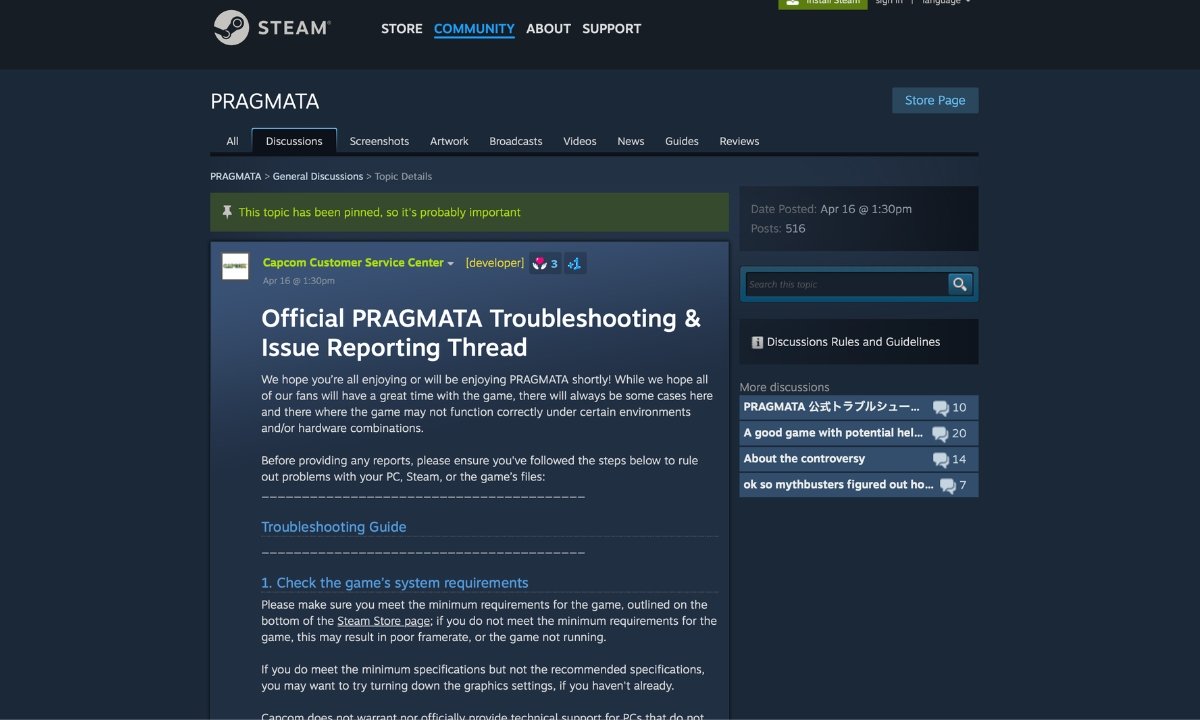
Not yet. At the time of writing, Capcom’s update page only lists one patch for Pragmata — a PS5 Pro update from April 21, 2026. There is no PC performance patch confirmed yet.
What Capcom does have is an official troubleshooting thread on Steam where their support team lists steps players can take to help the game run better. That thread is the foundation for many of the fixes in this guide.
Intel also released a driver update that fixed a specific crash for players with Intel graphics cards. More on that in Fix 9.
Players on Steam and Reddit are still reporting problems. So treat everything below as steps to try, not guaranteed fixes. Game Empress will update this guide when Capcom releases a proper patch.
Fix 1: Update Your Graphics Drivers and Windows
This is the first thing Capcom tells players to do — and it really does matter. Old graphics drivers are one of the most common reasons Pragmata stutters or crashes on PC.
Think of a graphics driver like the translator between Pragmata and your graphics card. If the translator is out of date, things get lost in translation, and the game breaks.
Here is what to do depending on your graphics card:
NVIDIA users: Go to NVIDIA’s website and download the latest driver. While you are there — if you have something called NVIDIA Smooth Motion turned on, turn it off before launching Pragmata. Players have reported that Smooth Motion causes crashes when the game tries to use DLSS or Frame Generation. It is a quick setting to check and a low-risk thing to try.
AMD users: Go to AMD’s website and grab the latest driver.
Intel Arc users: There is a specific driver you need — version 32.0.101.8735, released April 21, 2026. Before this driver, Pragmata could crash while loading the game menu on some Intel graphics setups. Download it from Intel’s official site and see Fix 9 for more details.
A cleaner way to update drivers. When you uninstall a graphics driver the normal way, it leaves bits and pieces behind that can cause problems with the new driver. A free tool called Display Driver Uninstaller (DDU) removes everything completely. Capcom’s own guide recommends a clean install if a normal update does not help. You can download DDU from Guru3D.
Also run Windows Update and install anything that is waiting. Pragmata needs DirectX 12 to work, and old Windows versions can cause issues with it.
Fix 2: Check Your Game Files on Steam
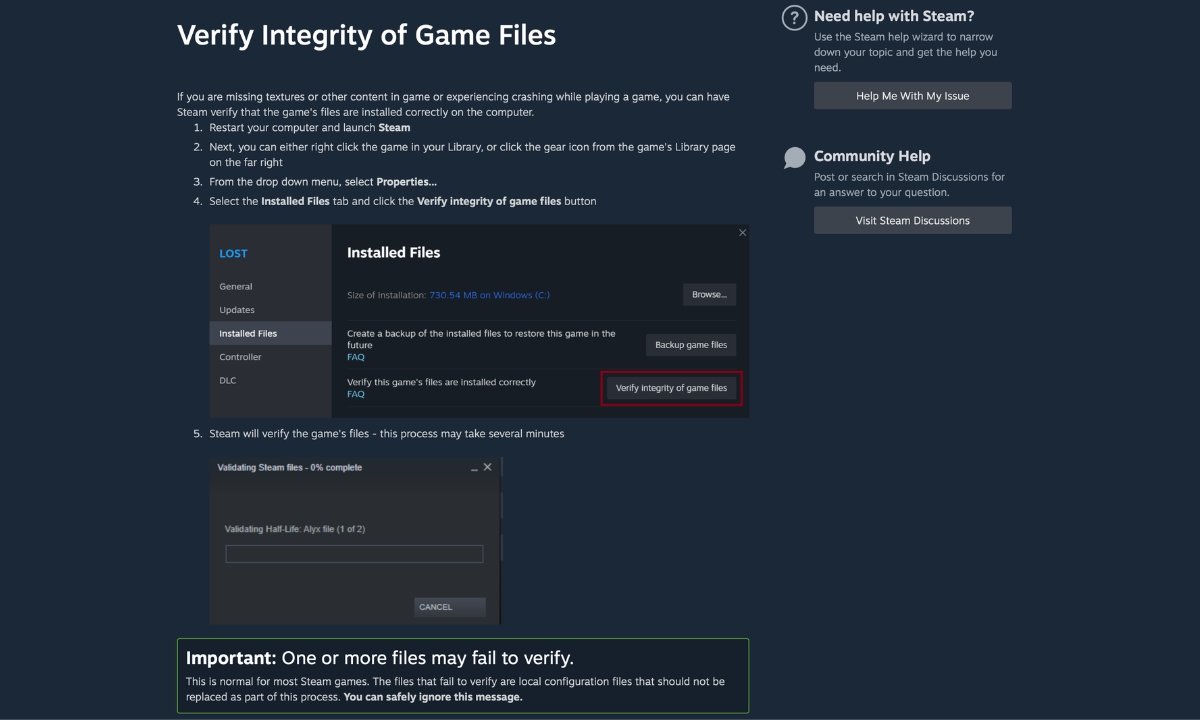
Sometimes a file gets corrupted during download or after an update. One bad file can cause crashes, stuttering, and all sorts of strange behaviour — even if everything else on your PC is fine.
Steam has a built-in tool that checks your game files and replaces anything broken. Capcom recommends this as one of the first steps to try.
Here is how to do it:
- Open Steam and find PRAGMATA in your library.
- Right-click it and choose Properties.
- Click Installed Files.
- Click Verify integrity of game files.
Steam compares your local files against Steam’s content server and redownloads anything that is missing or damaged. It takes a few minutes. This normally does not affect save data. Capcom’s guide notes that one or more files may fail to verify — this is normal for local configuration files and you can safely ignore that message. Let the process finish completely before relaunching the game.
Fix 3: Delete the Shader Cache Files
This is one of the most important fixes on this list, and it comes straight from Capcom’s official guide.
Here is the idea: Pragmata creates special files that help it load graphics faster. Over time, these files can get damaged — especially if you changed your settings or had a crash mid-game. When that happens, the game slows down or behaves strangely because it is working from bad data.
The fix is simple: delete the old files. The game will make fresh ones the next time you start it.
Capcom specifically names these three files to delete:
- shader.cache
- shader.cache2
- pipelinelist.bin
You will find them inside the Pragmata game folder. The default location is:
C:\Program Files (x86)\Steam\steamapps\common\PRAGMATA
Just open that folder, find those three files, and delete them. The game should recreate them after launch. Players on Steam say that deleting shader.cache2 in particular made a noticeable difference in crash frequency and stuttering.
Fix 4: The Game Freezes Every Few Seconds — Try This
If Pragmata freezes briefly on a rhythm — about every 20 to 30 seconds — this is probably connected to the game preparing graphics as you play. It is most common on your first playthrough.
According to community testing by GameGuidesBox, one tester tracked freezes every 25 seconds during a full first playthrough. After clearing the shader cache and letting the game rebuild it, the second playthrough had no freezes for four hours. Results will vary depending on your PC, but it is a good starting point.
Here is the step-by-step fix:
Step 1: Delete the three shader files from your Pragmata folder as described in Fix 3.
Step 2: Clear the Steam shader cache too. Open Steam, go to Settings > Downloads, and click Clear Download Cache. Then open your Steam folder, go to steamapps > shadercache, find the folder named 3357650 (that is Pragmata’s ID), and delete it.
Step 3: Launch Pragmata and wait on the main menu for a minute or two before starting the game. This gives it time to rebuild everything before you start playing.
Step 4: If freezes are still happening after that, open Windows Disk Cleanup, select your C drive, tick DirectX Shader Cache, and click OK. This clears an extra cache your graphics driver uses, and it can help too.
Why does this work? Multiple guides for games on the same engine describe a pattern where the game prepares graphics effects the first time they appear — pausing briefly each time it does. Once it has done the work once, those pauses stop. Capcom does not explain this directly in their guide, but their recommendation to delete shader files is consistent with it.
Fix 5: Getting a Fatal D3D Error? Here Is What to Do
The Fatal D3D error looks like this:
Fatal D3D error (24, DXGI_ERROR_DEVICE_REMOVED, 0x887a0005)
That looks intimidating but it basically means: your PC lost its connection to the graphics card and could not get it back. The game crashed instead of recovering.
This is one crash type Pragmata players are reporting. Here is how to work through it:
Turn off Path Tracing first. Path Tracing is a very demanding graphics setting that shows up in many of these crash reports. If you have it turned on, turn it off — either in the game settings or by editing the config file (see Fix 8). Some players found this alone stopped the crashes.
Remove any GPU overclocking. If you have ever used software like MSI Afterburner to make your graphics card run faster, that can cause instability in Pragmata. Set everything back to default and test the game at normal speed before trying anything else.
Do a clean driver reinstall using DDU. If the crash keeps happening even at default settings, there may be leftover data from old drivers causing the problem. Use DDU (see Fix 1) to wipe everything clean and install fresh drivers. Players who were stuck on this error said a DDU wipe fixed it when nothing else did.
The TdrDelay registry fix — only if nothing else works. Some third-party guides suggest a Windows registry change that gives your graphics card more time to respond before Windows forces a crash. It is not something Capcom recommends, and it is a system-level change, so only try it as a last resort. If you want to try it:
- Press Win + R, type
regedit, and press Enter. - Go to
HKEY_LOCAL_MACHINE\SYSTEM\CurrentControlSet\Control\GraphicsDrivers. - Right-click in that folder and choose New > DWORD (32-bit) Value.
- Name it
TdrDelayand set the value to 10. - Restart your PC.
If this causes any new problems, delete the TdrDelay entry to undo it.
Crashed after changing Frame Generation to DLSS? Some players got stuck in a crash loop after switching that setting. The fix was deleting both the shader cache files and the config.ini file from the game folder, then letting both rebuild from scratch on the next launch.
For a deeper look at all types of Pragmata crashes, see our Pragmata Fatal D3D Error and Crashing Fixes guide.
Fix 6: Close Other Programs and Turn Off Overlays
Pragmata does not always play well with other software running in the background. Capcom’s own guide calls this out — recording tools, performance overlays, and background apps can all get in the way and cause stuttering or crashes.
Try turning these off one at a time and testing after each:
- Steam overlay — turn it off in Steam > Settings > In-Game
- Discord overlay
- NVIDIA GeForce Experience overlay
- NVIDIA Smooth Motion — found in NVIDIA App or driver settings. Players report this causes crashes with DLSS or Frame Generation
- MSI Afterburner and RivaTuner
- Xbox Game Bar
- OBS, ShadowPlay, or any other recording tool
- Browser tabs, cloud backup tools, anything updating in the background
Also add Pragmata to your antivirus exceptions. This is something a lot of people miss. If your antivirus is scanning game files while Pragmata is loading them, it can cause hitches and mid-session crashes. Capcom specifically names these three things to exclude:
PRAGMATA.exe— found atC:\Program Files (x86)\Steam\steamapps\common\PRAGMATASteam.exe— found atC:\Program Files (x86)\Steam- Your Steam AppData folder — found at
C:\Users\[your name]\AppData\Local\Steam
Fix 7: Turn Down Your Graphics Settings
If the game is still stuttering after the steps above, your graphics settings might simply be too high for your hardware. Capcom recommends lowering them, starting with the most demanding ones first.
Go to Options > Graphics and switch to the Minimum preset. If the stuttering stops, you know graphics load is the issue. Then you can slowly raise individual settings until you find where the problem starts.
Here is what to change and why:
Ray Tracing — turn it off if your card is not powerful enough. The game requires at least an AMD Radeon RX 6700 XT with 12GB of memory, or an NVIDIA RTX 3060 with 12GB, to support ray tracing properly. If your card is below that, turning ray tracing off will help a lot.
Path Tracing — turn this off first when troubleshooting. Path Tracing is even more demanding than ray tracing. It appears in a lot of crash reports, particularly the Fatal D3D error. Turning it off is a sensible first troubleshooting step when something goes wrong.
Texture Quality — stick to Medium. If textures look blurry or the game feels sluggish, your graphics card may be running out of memory. Drop textures to Medium. One community tester reported that the Low preset actually made things worse — causing textures to fail loading and creating frame time spikes. Medium is the safe floor.
Volumetric Lighting and Fog — lower these in demanding scenes. These settings affect how light moves through air and smoke effects. Lowering them can smooth out performance in busier parts of the game.
Shadow Quality and Hair Quality — Medium is fine. These have a noticeable impact on performance with very little visible difference when set to Medium.
Use the game’s upscaling option. In graphics settings, you can switch to a balanced upscaling mode. This makes the game run at a lower resolution internally and then sharpens the image — giving you better performance without making things look dramatically worse.
Once everything is running smoothly, check out our Pragmata All Weapons Guide to see all 15 weapons in the game, and our Pragmata Best Loadout Guide to build the best setup.
Fix 8: Crashes When Changing Path Tracing or Frame Generation?
Some players find that Pragmata crashes the moment they try to turn Path Tracing or Frame Generation on or off in the settings menu. It crashes before the setting even changes.
Wccftech reports that editing config.ini can bypass crashes caused when toggling Path Tracing or Frame Generation from the in-game menu. The workaround is to set these options before you launch the game instead of changing them inside it:
- Right-click PRAGMATA in Steam, choose Manage > Browse Local Files.
- Find the file called config.ini and open it with Notepad.
- Change your Path Tracing, Frame Generation, and upscaling settings directly in that file.
- Save and close the file, then launch the game.
This way the game starts with the settings already set and never has to restart anything mid-session.
Also — if you have any GPU overclock running, turn it off before changing graphics-heavy settings. The game is sensitive to that kind of instability.
Fix 9: Intel Graphics Users — Install This Driver
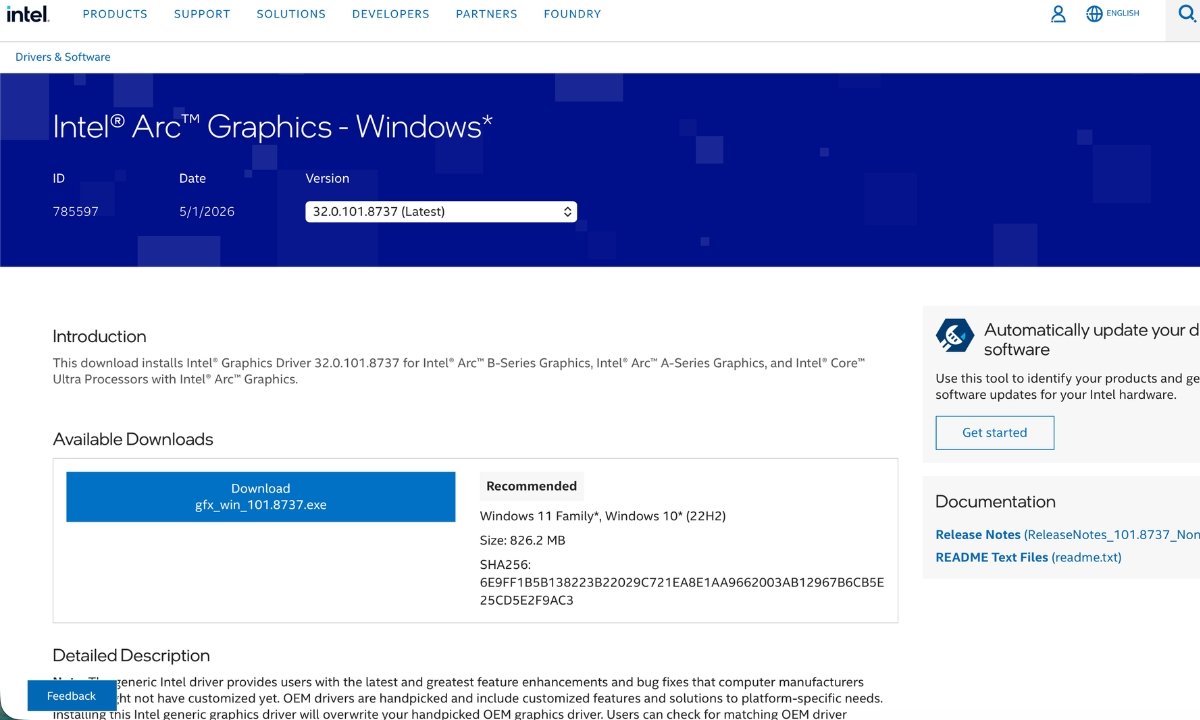
If your PC has an Intel Arc graphics card or an Intel Core Ultra processor with built-in graphics, there is a specific driver update just for you.
Intel released driver 32.0.101.8735 on April 21, 2026. Before this update, Pragmata could crash while loading the game menu on some Intel setups. This driver fixes that specific problem.
It covers:
- Intel Arc A-Series graphics cards
- Intel Arc B-Series graphics cards
- Intel Core Ultra Series 1, 2, and 3 with built-in Intel Arc graphics
Download it from Intel’s official driver page.
One important note: this fix only covers that specific menu crash. It does not fix general stuttering, freezing, or long-session slowdowns on Intel hardware. Do not expect it to solve everything.
Fix 10: Check Your PC’s Temperature, Power Settings, and SSD
These are easy to overlook but they matter. Capcom’s own guide mentions all of them.
If your PC gets hot, the game will slow itself down. When your graphics card runs too hot, it automatically reduces its speed to cool down. This causes stuttering that gets worse the longer you play — and usually recovers after you restart the game. Use a free tool like HWMonitor to check your temperatures while playing. If they are running high, make sure your vents are clear and your fans are working.
Set Windows to High Performance mode. If your PC is set to a power-saving mode, it may be limiting how fast your processor and graphics card run. Search for Power Plan in Windows and switch to High Performance or Balanced. This is especially important on laptops.
Laptops: make sure Pragmata is using the right graphics card. Many laptops have two graphics cards — a weaker one built into the processor, and a stronger dedicated one. Pragmata should always use the dedicated one. Open your NVIDIA or AMD control panel and check that Pragmata is assigned to the dedicated card. Running it on the built-in graphics will cause serious performance problems.
Install the game on an SSD. Capcom recommends an SSD in the system requirements. Pragmata loads a lot of data as you move through the game. If it is installed on an older hard drive, you may see loading pauses and texture delays. Moving it to an SSD is worth doing if you have the option.
Quick Answers
Has Capcom permanently fixed Pragmata stuttering and freezing? Not yet. As of the time of writing, there is no PC performance patch from Capcom. What exists are their official troubleshooting steps, one Intel driver fix, and workarounds players have shared.
Why does the game freeze every few seconds? This is likely connected to the game preparing graphics effects as you play. Deleting the shader cache files — shader.cache, shader.cache2, and pipelinelist.bin — from the game folder and letting them rebuild has helped many players. It is most common on a first playthrough.
What is the Fatal D3D error? It means your PC lost connection to the graphics card and could not get it back. Start by turning off Path Tracing and removing any GPU overclock. If it keeps happening, do a clean driver reinstall with DDU.
Should I delete the shader cache files? Yes. Capcom’s guide specifically recommends it for graphical issues and instability. The files are safe to delete — the game rebuilds them automatically.
Does NVIDIA Smooth Motion cause crashes in Pragmata? Players report that disabling it fixed crashes when using DLSS or Frame Generation. It is not an official Capcom statement, but it is easy to check and worth trying.
What did the Intel driver fix? Driver 32.0.101.8735 fixed a crash that happened when loading the game menu on some Intel Arc and Core Ultra setups. It does not fix general stuttering or freezing.
Where do I report a crash to Capcom? Go to Capcom’s pinned Steam thread. When Pragmata crashes, it saves a crash report file inside your game folder in a folder called CrashReport. Attach that zip file, along with your DxDiag.txt and config.ini, when you contact Capcom support.
More Pragmata Guides
- Pragmata Fatal D3D Error and Crashing Fixes on PC — dedicated deep dive into every crash type
- Pragmata Boss Guide — how to beat every boss
- Pragmata All Weapons Guide — all 15 weapons and where to find them
- Pragmata Best Loadout Guide — the best setup once you are up and running
Game Empress will update this guide when Capcom releases a patch for PC performance.