
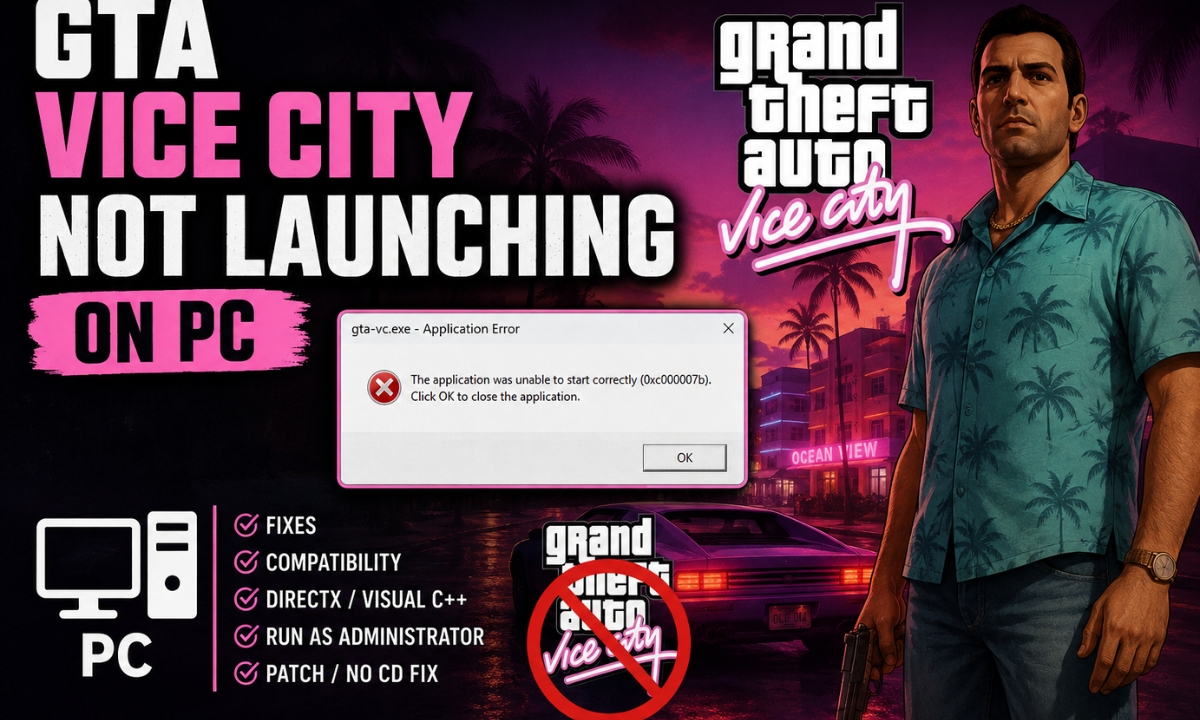

Classic GTA Vice City fails silently on Windows 10/11 — no crash dialog, no error message — because it was built for Windows 98/XP-era systems. The causes are compatibility mode mismatches, display initialization failure, Data Execution Prevention (DEP), or a corrupted settings file. None of these require reinstalling. Work through the fixes below in order.
Which Version Do You Have?
This matters before applying any fix.
Classic GTA Vice City — runs via gta-vc.exe. Every fix in this guide applies to this version.
GTA Vice City – The Definitive Edition — a separate modern release with different requirements: Windows 10 64-bit, GTX 760 or R9 280-class GPU, 8GB RAM, 45GB storage, DirectX, Chromium, Microsoft Visual C++ 2008 SP1, and a Rockstar account. None of the classic fixes below apply to it, and SilentPatch explicitly does not support it.
Check your Steam Library or Rockstar Launcher for the exact title before proceeding.
Fix 1: Launch gta-vc.exe Directly From the Install Folder
Steam can invoke the executable incorrectly and fail without surfacing any error. This bypasses that entirely.
Steam default path:
C:\Program Files (x86)\Steam\steamapps\common\Grand Theft Auto Vice City\Rockstar Launcher: navigate to whichever install path you chose during setup.
Find gta-vc.exe and double-click it directly. If the game opens this way, the issue is likely with Steam’s launch path or with compatibility settings not being applied through Steam.
Fix 2: Set gta-vc.exe to Compatibility Mode
Right-click gta-vc.exe → Properties → Compatibility → check “Run this program in compatibility mode for:”
Test these in order, applying and relaunching after each:
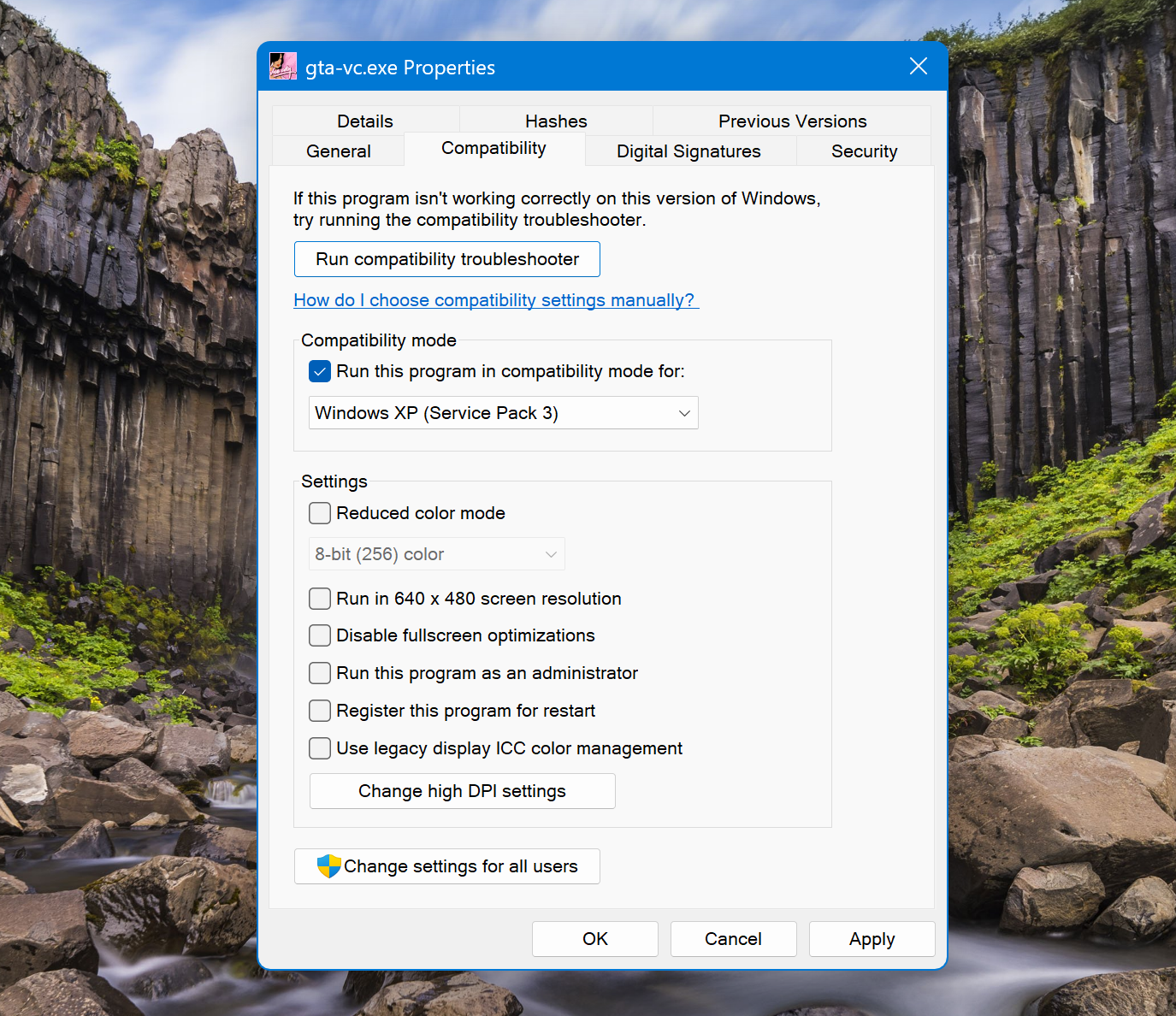
- Windows 8
- Windows XP (Service Pack 3)
- Windows 98 / Windows Me
Windows XP SP3 and Windows 98/Me are both worth testing. Different installs behave differently, especially between Steam and older disc versions.
Fix 3: Enable 640×480 Resolution Once to Clear Display Initialization
Vice City silently aborts startup when it cannot resolve a valid display mode. Setting it to 640×480 forces the lowest safe mode and lets it get past that block.
- Right-click
gta-vc.exe→ Properties → Compatibility - Check “Run in 640 × 480 screen resolution”
- Apply → Launch the game
- Once inside, return and uncheck this option
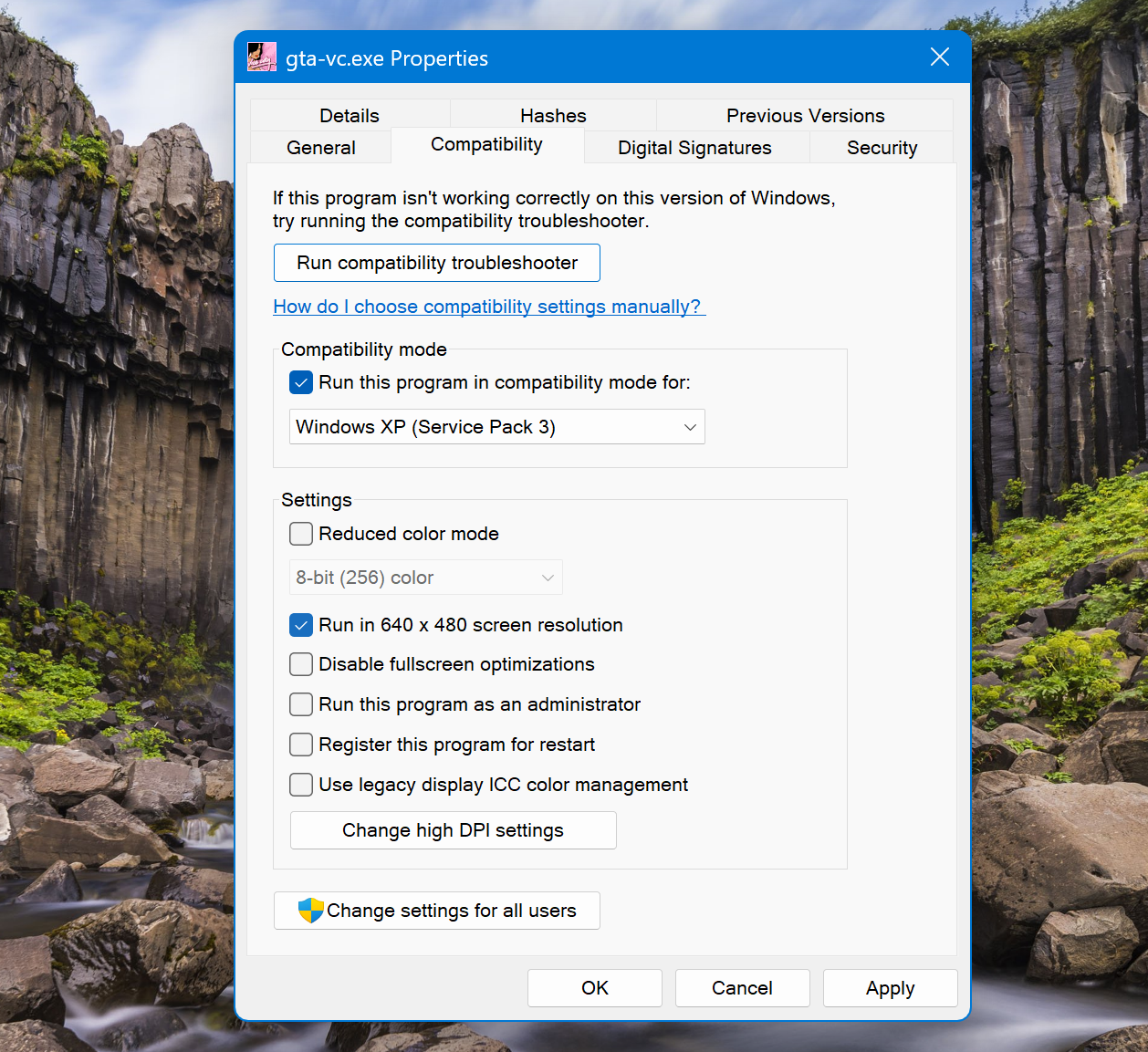
This is a one-time initialization workaround, not a permanent display setting.
Fix 4: Rename the Settings File
Vice City stores display and control settings in gta_vc.set. If this file was written under a different Windows version or display configuration, the game can refuse to open silently rather than reporting an error.
File location:
Documents\GTA Vice City User Files\gta_vc.set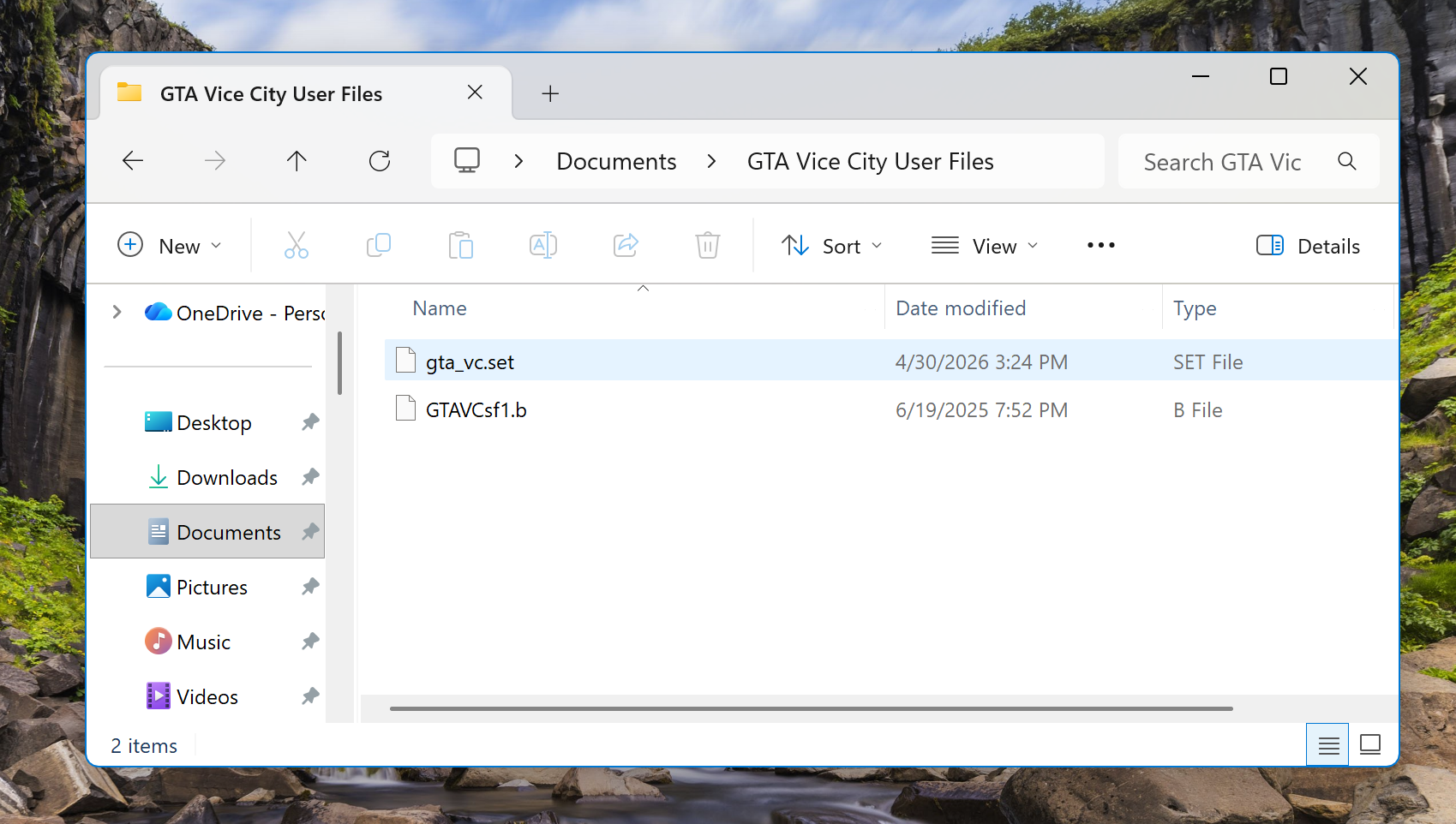
Rename it to gta_vc_old.set. The game recreates a clean file on next launch. If this resolves the issue, the original file was corrupted and can be deleted.
Fix 5: Black Screen When Loading a Saved Game
If GTA Vice City opens but turns black when you load a saved game, the problem is different from a silent startup failure. Rockstar says this can happen when cheats were used and active while saving. Their official workaround is to delete gta_vc.set from Documents\GTA Vice City User Files, launch the game, and start a new game before loading anything else. If the saved file itself was damaged by cheat codes usage, resetting the settings file may not recover that save.
Fix 6: Resolve the DEP Conflict — Exception or SilentPatch
Windows Data Execution Prevention (DEP) can terminate Vice City at startup without producing any visible error, particularly when DEP is configured to cover all programs. Two ways to resolve it:
Option A: Add a DEP Exception
- Control Panel → System → Advanced system settings
- Under Performance → Settings → Data Execution Prevention tab
- Select “Turn on DEP for all programs and services except those I select”
- Click Add → navigate to
gta-vc.exe - Apply → Restart
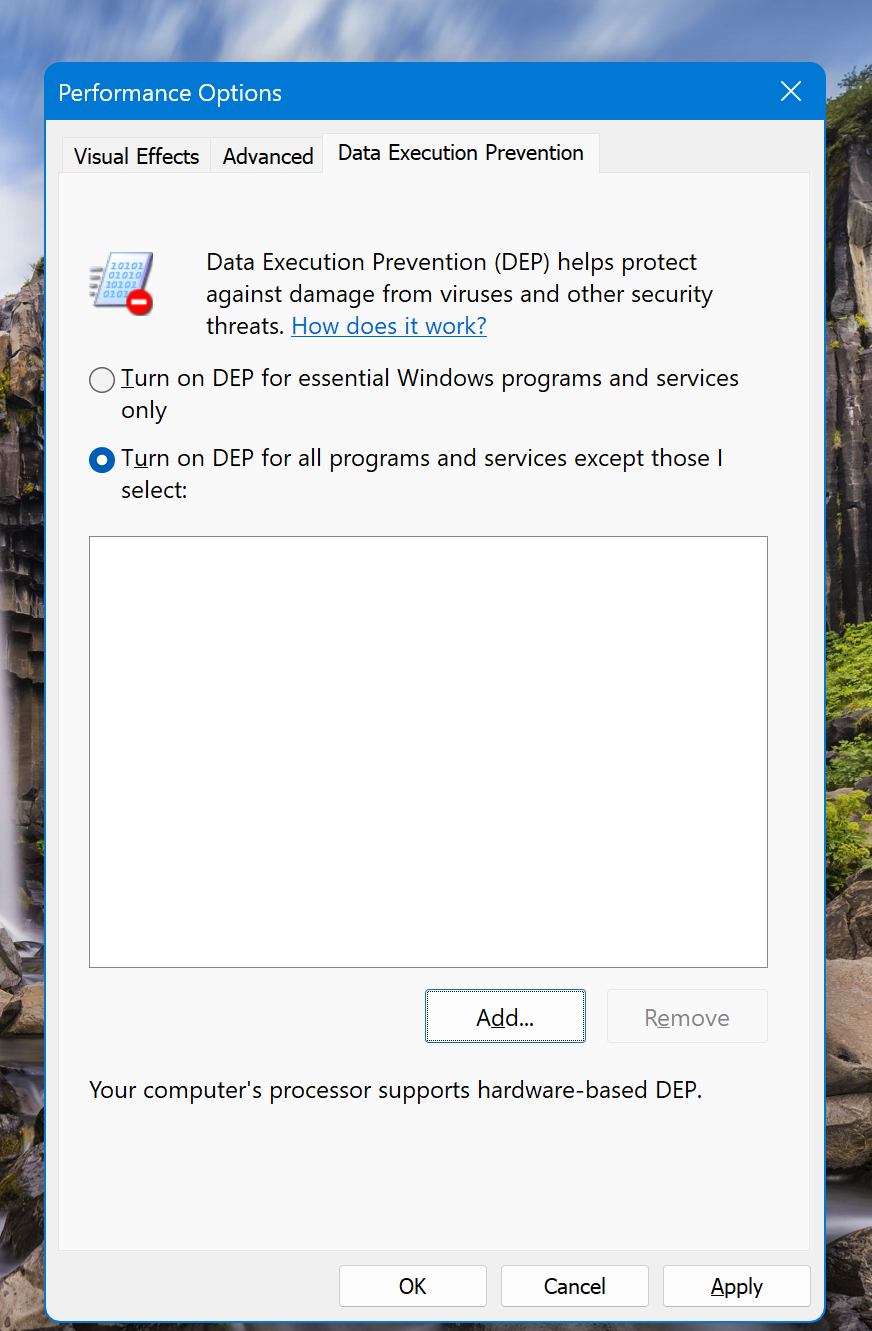
Do not disable DEP system-wide. Add only the game executable as an exception.
Option B: SilentPatch + DDraw Component
SilentPatch is the strongest community fix for the classic PC version on Windows 10/11. It removes Vice City’s dependency on legacy DirectPlay components, improves compatibility with Windows 8 and newer, and prevents startup crashes when DEP is enabled for all applications. The separate DDraw Component helps with DirectDraw rendering on modern systems. Install both only on the classic PC version by placing the files in the game’s root folder next to gta-vc.exe. SilentPatch does not support GTA Vice City – The Definitive Edition.
Fix 7: Verify Game Files
Corrupted or incomplete game files cause silent launch failures. Run verification before considering a reinstall.
Steam: Library → Right-click Grand Theft Auto: Vice City → Properties → Installed Files → Verify integrity of game files
Rockstar Launcher: Settings → My Installed Games → Vice City → Verify Integrity
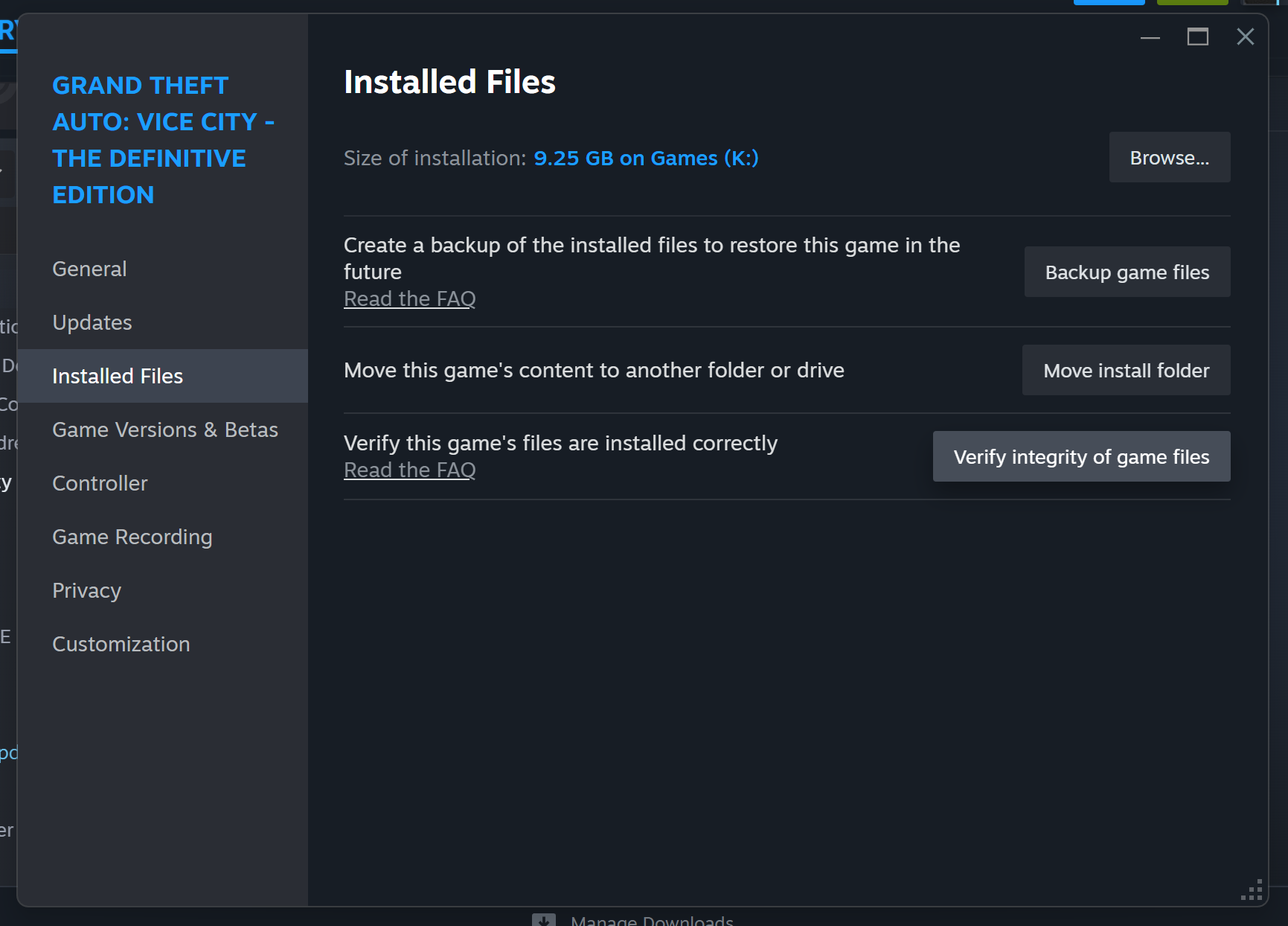
Verification replaces only the files that fail the check. Saves and settings are not affected.
Rockstar Games Launcher: The Verify Integrity option is only available for copies purchased directly through the Rockstar Games Launcher. If you own classic GTA Vice City on Steam, use the Steam method above.
Fix 8: Reinstall — Back Up Saves First
If verification finds nothing and the game still does not launch, a clean reinstall is the last step.
Before uninstalling, back up your saves:
Documents\GTA Vice City User FilesCopy this entire folder to a separate location. After reinstalling, paste it back. Your saves will be intact.
What Not to Do
| Action | Why it’s wrong |
|---|---|
| Download missing DLL files from third-party sites | Unsafe and unnecessary. Steam and Rockstar file verification handle legitimate missing files. |
| Treat GPU driver updates as the primary fix | Driver updates may help display problems, but they are not the main fix for compatibility, DEP, or settings-file failures. |
| Apply the old Rockstar Vice City patch by default | Rockstar says the patch targets a specific graphical corruption issue, and users without that issue do not need it. |
| Use SilentPatch on the Definitive Edition | SilentPatch’s documentation says the Definitive Edition is not supported. |
| Treat this as a new bug | This is a long-running classic-game compatibility problem, not a recent broken update. |
