Author: Shankar

  • How To Beat Anubis Palworld? Tips And Tricks To Defeat The Ground Alpha Boss

    How To Beat Anubis Palworld? Tips And Tricks To Defeat The Ground Alpha Boss

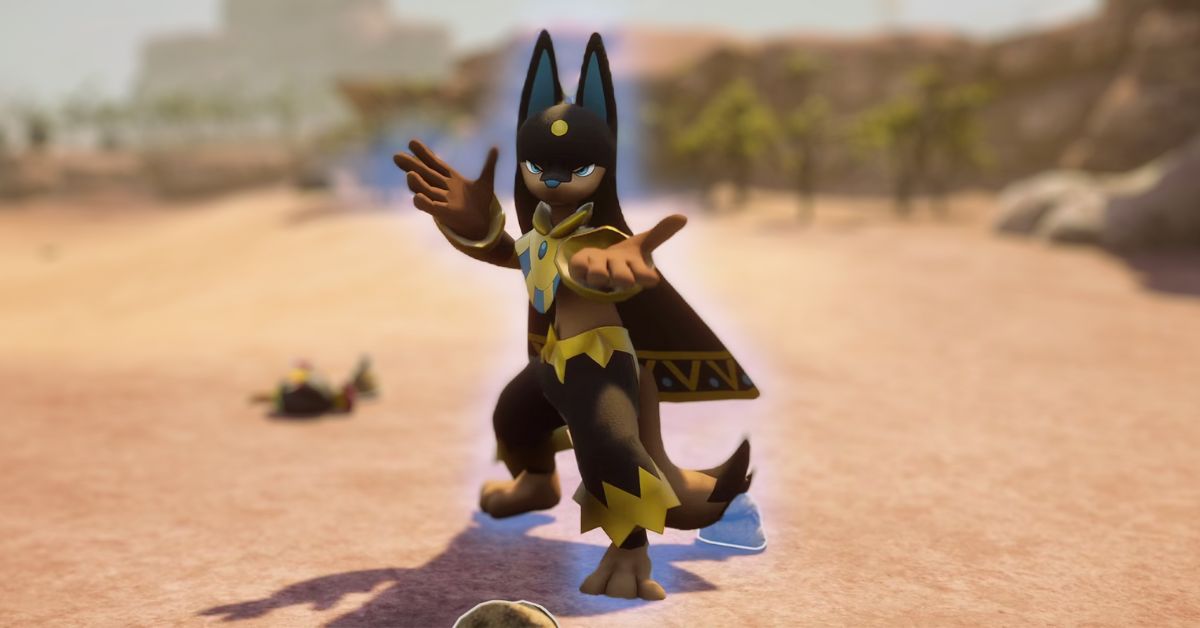
    Anubis is a Ground-type Pal in Palworld, a game that combines survival, crafting, and monster taming. Anubis is one of the Alpha Bosses, powerful Pals that can be found in specific locations and have unique skills and drops.

    Anubis can be encountered in the desert area near the Sealed Realm of the Winged Tyrant teleport point, and it is level 47. Anubis is a formidable opponent that can deal massive damage with its Ground-type skills, such as Sand Tornado, Ground Smash, and Spinning Roundhouse.

    It also has high Attack and Defense stats, and a Partner Skill that grants Ground damage to its allies. To beat Anubis, you will need a good strategy, a strong team, and some luck.

    In this article, we will show you how to beat Anubis Palworld, including its location, weaknesses, skills, drops, and best counters. We will also give you some tips and tricks to make the fight easier and more rewarding.

    Anubis Location

    Anubis can be found in the desert area just northeast of the Sealed Realm of the Winged Tyrant teleport point. It roams around out in the open at the coordinates -130, and -96.

    Anubis is not always present in the area, and it may take some time for it to respawn. You can also use the Effigy of the Ground Alpha Boss to summon it instantly, but you will need to craft it first.

    Anubis Weakness and How to Catch?

    How To Beat Anubis Palworld
    How To Beat Anubis Palworld

    Anubis is a Ground-type Pal, which means it is weak against Grass-type Pals and skills. It is also resistant to Electric-type Pals and skills. You should avoid using Electric-type Pals against Anubis, as they will deal less damage and take more damage from it.

    To catch Anubis, you will need to lower its HP to below 10%, and then use a Pal Ball or a Pal Ball Plus to capture it. You can also use items such as Pal Bait or Pal Snare to increase your chances of catching it. However, Anubis has a low catch rate, so you may need to use multiple Pal Balls or Pal Ball Pluses to catch it.

     Anubis Skills

    Anubis has four active skills and four passive skills. Here are the details of each skill:

    • Sand Tornado: Anubis creates a sandstorm that hits multiple enemies and has a chance to inflict Blindness.
    • Ground Smash: Anubis slams the ground and creates a shockwave that hits enemies in a wide area.
    • Spinning Roundhouse: Anubis spins and kicks enemies around it, hitting multiple targets.
    • Guardian of the Desert: Anubis’s Partner Skill that increases its ally’s Attack and changes their damage type to Ground.
    • Musclehead: Anubis’s passive skill that increases its Attack by 30%.
    • Ferocious: Anubis’s passive skill that increases its Attack by 20% when its HP is below 50%.
    • Swift: Anubis’s passive skill that increases its movement speed by 20%.
    • Runner: Anubis’s passive skill that increases its movement speed by 10%.

    Anubis Drops

    Anubis has a chance to drop the following items when defeated or captured:

    • Anubis Horn: A rare material that can be used to craft weapons and armor.
    • Anubis Fur: A common material that can be used to craft clothing and furniture.
    • Anubis Meat: A food item that can be cooked and eaten to restore HP and Hunger.
    • Anubis Egg: A huge rocky egg that can be hatched to obtain an Anubis Pal.

    Anubis Counters

    To beat Anubis, you will need a team of strong and fast Pals that can exploit its weaknesses and avoid its attacks. Here are some of the best Pals to use against Anubis:

    • Verdash: A Grass-type Pal that can match Anubis’s speed and deal super effective damage with its skills, such as Leaf Blade, Leaf Storm, and Solar Beam. It also has a Partner Skill that increases its ally’s Defense and changes its damage type to Grass.
    • Elizabee: A Grass-type Pal that can heal and buff its allies with its skills, such as Honey Heal, Pollen Puff, and Sweet Scent. It also has a Partner Skill that increases its ally’s Attack and changes its damage type to Grass.
    • Mammorest: A Grass-type Pal that can tank and debuff Anubis with its skills, such as Vine Whip, Stomp, and Roar. It also has a Partner Skill that increases its ally’s HP and changes its damage type to Grass.
    • Beegarde: A Grass-type Pal that can protect and support its allies with its skills, such as Protect, Reflect, and Light Screen. It also has a Partner Skill that increases its ally’s Speed and changes their damage type to Grass.

    Tips and Tricks to Beat Anubis

    Here are some tips and tricks that can help you beat Anubis:

    • Use items: You can use items such as Potions, Revives, and Elixirs to heal and restore your Pals during the fight. You can also use items such as Pal Bait or Pal Snare to increase your chances of catching Anubis.
    • Use the environment: You can use the environment to your advantage, such as hiding behind rocks or trees to avoid Anubis’s attacks or luring it to water or grass to reduce its damage output.
    • Use the photo mode: You can use the photo mode to pause the game and plan your next move, or to take screenshots of the epic battle.
    • Save your game: You can save your game before and after the fight, in case you want to retry or change your strategy.

    Conclusion

    Anubis is a powerful and rare Pal that can be a challenge to beat and catch. However, with the right team, strategy, and items, you can defeat and capture it. We hope this article helped you learn how to beat Anubis Palworld, and we encourage you to try it out and enjoy the game.

  • Nukitashi 2 System Requirements: Can Your PC Run This Visual Novel?

    Nukitashi 2 System Requirements: Can Your PC Run This Visual Novel?

    Nukitashi 2 is a visual novel that is the sequel to Nukitashi, a comedy and romance game that is set in a world where the majority of people have lost their emotions. The game was developed by Qruppo and published by Shiravune. The game was released on February 15, 2024, for PC, and it is available on Steam and Game Jolt.

    The game follows the story of Junnosuke Tachibana, a young man who is one of the few people who still have emotions. He is transferred to a parallel world where he joins the FS, a group of emotionless people who fight against the tyranny of the emotionless majority. The game features multiple endings, dark humor, and a cast of colorful characters.

    If you are interested in playing Nukitashi 2 on your PC, you might want to know what are the system requirements for this game. In this article, we will show you the minimum and recommended PC requirements for Nukitashi 2, as well as some tips on how to optimize your performance and graphics settings.

    Nukitashi 2 System Requirements

    Nukitashi 2 System Requirements
    Nukitashi 2 System Requirements

    The minimum PC requirements for Nukitashi 2 are the following:

    • OS: Windows 7 or later, 64-bit
    • Processor: Intel i3-3240 or AMD FX-4100
    • Memory: 4 GB RAM
    • Graphics card: Nvidia GeForce GT 730 or AMD Radeon R7 240
    • DirectX: Version 11
    • Online connection: 512 KBPS or faster internet connection
    • Hard-drive space: 10 GB available space

    These specs allow for the game to be played in 1080p/30fps with graphics settings at “Lowest”.

    The recommended PC requirements for Nukitashi 2 are the following:

    • OS: Windows 10, 64-bit
    • Processor: Intel Core i5-3470 or AMD Ryzen 3 3300X
    • Memory: 8 GB RAM
    • Graphics card: Nvidia GeForce GTX 1060 3GB or AMD Radeon RX 580 4GB
    • DirectX: Version 11
    • Online connection: 512 KBPS or faster internet connection
    • Hard-drive space: 20 GB available space

    These specs allow for the game to be played in 1080p/60fps with graphics settings at “Standard”.

    How to Optimize Nukitashi 2 for PC?

    If you want to optimize Nukitashi 2 for your PC, here are some tips that you can follow:

    • Update your drivers: Make sure that your graphics card drivers are up to date, as they can improve the performance and stability of the game. You can download the latest drivers from the official websites of AMD or NVIDIA.
    • Adjust your graphics settings: You can tweak your graphics settings in the game’s menu, under the “Options” and then “Graphics” tabs. You can change the resolution, frame rate, anti-aliasing, texture quality, shadow quality, and more. You can also use the “Auto” option, which will adjust the settings based on your system specifications.
    • Close unnecessary programs: You can free up some memory and CPU resources by closing any unnecessary programs or background processes that are running on your PC. You can use the Task Manager to check which programs are using the most resources and end them if they are not needed.
    • Use a wired connection: If you are playing online, you might want to use a wired connection instead of a wireless one, as it can reduce latency and packet loss.

    Conclusion

    Nukitashi 2 is a fun and hilarious visual novel that will make you laugh and cry with its story and characters. The game requires a decent PC to run smoothly and enjoyably, but it also offers a lot of options and features to customize your experience.

    This is everything you need to know about Nukitashi 2 System Requirements. Additionally, you can check our guide on Halo Reach PC Requirements and Hitman 3 PC Requirement. Stay connected with GameEmpress.com to get the latest news and guides about the gaming world.

  • Frostpunk 2 System Requirements: Can Your PC Handle The Frozen Apocalypse?

    Frostpunk 2 System Requirements: Can Your PC Handle The Frozen Apocalypse?

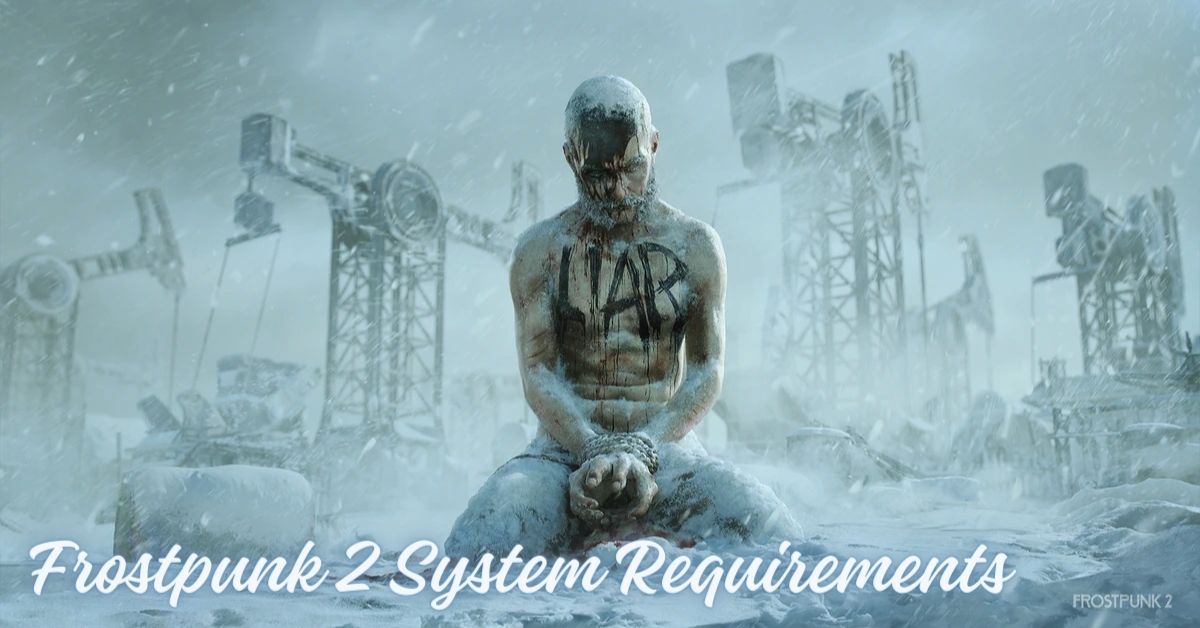
    Frostpunk 2 is the sequel to the critically acclaimed survival city-builder game, Frostpunk. The game is developed by 11 Bit Studios and published by 11 Bit Studios. The game is set to release in 2024 for PC, and possibly for other platforms later.

    The game takes place 30 years after the events of the first game, where humanity has survived the great frost that has covered the Earth. However, a new threat emerges as the survivors discover a new source of energy: oil.

    The game will challenge you to manage your city, resources, and people, as well as face the moral dilemmas and consequences of your choices. The game will also feature new mechanics, locations, and factions, as well as improved graphics and performance.

    If you are interested in playing Frostpunk 2 on your PC, you might want to know what are the system requirements for this game. In this article, we will show you the minimum and recommended PC requirements for Frostpunk 2, as well as some tips on how to optimize your settings and performance.

    Frostpunk 2 System Requirements

    Frostpunk 2 System Requirements
    Frostpunk 2 System Requirements

    The minimum PC requirements for Frostpunk 2 are the following:

    • OS: Windows 7 or later, 64-bit
    • Processor: Intel i3-3240 or AMD FX-4100
    • Memory: 4 GB RAM
    • Graphics card: Nvidia GeForce GT 730 or AMD Radeon R7 240
    • DirectX: Version 12
    • Online connection: 512 KBPS or faster internet connection
    • Hard-drive space: 5 GB available space

    These specs allow for the game to be played in 1080p/30fps with graphics settings at “Lowest”.

    The recommended PC requirements for Frostpunk 2 are not officially stated by the developers or the publishers, but based on our own experience and the opinions of other players, we suggest the following specs:

    • OS: Windows 10, 64-bit
    • Processor: Intel Core i5-3470 or AMD Ryzen 3 3300X
    • Memory: 8 GB RAM
    • Graphics card: Nvidia GeForce GTX 1060 3GB or AMD Radeon RX 580 4GB
    • DirectX: Version 12
    • Online connection: 512 KBPS or faster internet connection
    • Hard-drive space: 5 GB available space

    These specs allow for the game to be played in 1080p/60fps with graphics settings at “Standard”.

    How to Optimize Frostpunk 2 for PC?

    If you want to optimize Frostpunk 2 for your PC, here are some tips that you can follow:

    • Update your drivers: Make sure that your graphics card drivers are up to date, as they can improve the performance and stability of the game. You can download the latest drivers from the official websites of AMD or NVIDIA.
    • Adjust your graphics settings: You can tweak your graphics settings in the game’s menu, under the “Options” and then “Graphics” tabs. You can change the resolution, frame rate, anti-aliasing, texture quality, shadow quality, and more. You can also use the “Auto” option, which will adjust the settings based on your system specifications. Alternatively, you can use the NVIDIA GeForce Experience or the AMD Radeon Software to optimize the game for your PC automatically.
    • Close unnecessary programs: You can free up some memory and CPU resources by closing any unnecessary programs or background processes that are running on your PC. You can use the Task Manager to check which programs are using the most resources and end them if they are not needed.
    • Use a wired connection: If you are playing online, you might want to use a wired connection instead of a wireless one, as it can reduce latency and packet loss.

    Conclusion

    Frostpunk 2 is a highly anticipated game that will test your survival and management skills in a frozen post-apocalyptic world. The game will require a decent PC to run smoothly and enjoyably, but it will also offer a lot of options and features to customize your experience.

    This is everything you need to know about Frostpunk 2 System Requirements. Additionally, you can check our guide on Atomic Heart PC Requirement and Shadow Of The Tomb Raider PC Requirement. Stay connected with GameEmpress.com to get the latest news and guides about the gaming world.

  • Island Of Insight PC Requirements: Can You Run This Sublime Puzzle Game?

    Island Of Insight PC Requirements: Can You Run This Sublime Puzzle Game?

    Island of Insight is an upcoming puzzle game that lets you explore a beautiful open world filled with over 10,000 puzzles of different types and difficulties. The game is developed by Lunarch Studios, the same studio behind Prismata, and is set to release on February 13, 2024, for Windows PC.

    If you are interested in playing Island of Insight, you might be wondering if your PC can run it smoothly and without any issues. In this article, we will show you the official Island of Insight PC requirements, both minimum and recommended, as well as some tips on how to optimize your performance and enjoy the game.

    Island of Insight PC Requirements

    Island Of Insight Release Date
    Island Of Insight Release Date

    These are the PC specifications advised by the developers to run Island of Insight at minimal and recommended settings. Although these requirements are usually approximate, they can still be used to determine the indicative hardware tier needed to play the game.

    Minimum Requirements

    • OS: Windows 10 or later (64-bit)
    • Processor: Intel Core i5-3570K 3.4 GHz 4 Core
    • Memory: 16 GB RAM
    • Graphics: GeForce GTX 1050
    • VRAM: 2 GB
    • DirectX: Version 11
    • Storage: 35 GB

    Recommended Requirements

    • OS: Windows 10 or later (64-bit)
    • Processor: Intel Core i9-9900K 3.6 GHz 8 Core
    • Memory: 32 GB RAM
    • Graphics: GeForce RTX 2070
    • VRAM: 8 GB
    • DirectX: Version 11
    • Storage: 35 GB

    Island of Insight Performance on Your PC

    If you want to check how well your PC can run the Island of Insight, you can use some online tools that compare your PC’s specifications with the game’s system requirements. One such tool is PCGameBenchmark, which allows you to select your processor, graphics card, and RAM, and see how they match with the game’s minimum and recommended requirements.

    You can also see the user ratings of the game, as well as some other games developed by the same company.

    Another tool that you can use is the PC Guide, which scans your PC and tells you if you can run the Island of Insight. You can also see detailed information about your PC’s components, as well as the game’s minimum and recommended requirements.

    How to Optimize Your Performance and Enjoy the Game?

    If your PC meets the minimum system requirements for the Island of Insight, but you still experience some lag or stuttering, you can try some of the following tips to improve your performance and enjoy the game:

    • Update your drivers: Make sure that your graphics card and sound card drivers are up to date, as they can affect the game’s performance and compatibility. You can download the latest drivers from the official websites of your hardware manufacturers, such as NVIDIA or AMD.
    • Adjust your graphics settings: You can lower some of the graphics settings in the game’s options menu, such as resolution, anti-aliasing, shadows, textures, and effects. This can reduce the load on your graphics card and improve your frame rate. You can also enable the FPS counter in the game to monitor your performance.
    • Close unnecessary programs: You can close some of the programs that are running in the background, such as browsers, antivirus, or other applications. This can free up some of your CPU and RAM resources and prevent potential conflicts or crashes.
    • Use a game booster: You can use game booster software, such as Razer Cortex or Game Fire, which can optimize your PC for gaming by disabling some of the unnecessary processes and services, cleaning your RAM, and enhancing your gaming experience.

    This is everything you need to know about Island Of Insight PC Requirements. Additionally, you can check our guide on Atomic Heart PC Requirement and Shadow Of The Tomb Raider PC Requirement. Stay connected with GameEmpress.com to get the latest news and guides about the gaming world.

  • Palworld PC Requirements: Can Your PC Handle This Open-World Survival Game?

    Palworld PC Requirements: Can Your PC Handle This Open-World Survival Game?

    Palworld is an upcoming open-world survival game that lets you explore, craft, build, and fight with your pals, which are cute and diverse creatures that you can tame, breed, and use in combat.

    If you are interested in playing Palworld, you might be wondering if your PC can run it smoothly and without any issues. In this article, we will show you the official Palworld PC requirements, both minimum and recommended, as well as some tips on how to optimize your performance and enjoy the game.

    Palworld PC Requirements

    Palworld Release Date
    Palworld Release Date

    These are the PC specifications advised by the developers to run Palworld at minimal and recommended settings. Although these requirements are usually approximate, they can still be used to determine the indicative hardware tier needed to play the game.

    Minimum Requirements

    • OS: Windows 10 or later (64-Bit)
    • Processor: i5-3570K 3.4 GHz 4 Core
    • Memory: 16 GB RAM
    • Graphics: GeForce GTX 1050
    • VRAM: 2 GB
    • DirectX: Version 11
    • Storage: 40 GB

    Recommended Requirements

    • OS: Windows 10 or later (64-Bit)
    • Processor: i9-9900K 3.6 GHz 8 Core
    • Memory: 32 GB RAM
    • Graphics: GeForce RTX 2070
    • VRAM: 8 GB
    • DirectX: Version 11
    • Storage: 40 GB

    Palworld Performance on Your PC

    If you want to check how well your PC can run Palworld, you can use some online tools that compare your PC’s specifications with the game’s system requirements.

    One of such tools is PCGameBenchmark, which allows you to select your processor, graphics card, and RAM, and see how they match with the game’s minimum and recommended requirements.

    You can also see the user ratings of the game, as well as some other games developed by the same company.

    Another tool that you can use is PC Guide, which scans your PC and tells you if you can run Palworld. You can also see the detailed information about your PC’s components, as well as the game’s minimum and recommended requirements.

    How to Optimize Your Performance and Enjoy the Game?

    If your PC meets the minimum system requirements for Palworld, but you still experience some lag or stuttering, you can try some of the following tips to improve your performance and enjoy the game:

    • Update your drivers: Make sure that your graphics card and sound card drivers are up to date, as they can affect the game’s performance and compatibility. You can download the latest drivers from the official websites of your hardware manufacturers, such as NVIDIA or AMD.
    • Adjust your graphics settings: You can lower some of the graphics settings in the game’s options menu, such as resolution, anti-aliasing, shadows, textures, and effects. This can reduce the load on your graphics card and improve your frame rate. You can also enable the FPS counter in the game to monitor your performance.
    • Close unnecessary programs: You can close some of the programs that are running in the background, such as browsers, antivirus, or other applications. This can free up some of your CPU and RAM resources and prevent potential conflicts or crashes.
    • Use a game booster: You can use a game booster software, such as Razer Cortex or Game Fire, which can optimize your PC for gaming by disabling some of the unnecessary processes and services, cleaning your RAM, and enhancing your gaming experience.

    This is everything you need to know about Palworld PC Requirements. Additionally, you can check our guide on Tomb Raider 1-3 Remastered System Requirements and Shadow Of The Tomb Raider PC Requirement. Stay connected with GameEmpress.com to get the latest news and guides about the gaming world.

  • What The Golf System Requirement: Can You Run This Wacky Sports Game?

    What The Golf System Requirement: Can You Run This Wacky Sports Game?

    What the Golf is a hilarious and unconventional golf game that parodies various genres, mechanics, and tropes of video games. The game was developed by Triband and published by Triband and Aspyr.

    The game was released in 2019 for iOS, macOS, and Windows, and in 2020 for Nintendo Switch, PlayStation 4, and Xbox One.

    If you are interested in playing What the Golf on your PC, you might want to know what are the system requirements for this game. In this article, we will show you the minimum and recommended PC requirements for What the Golf and some tips on optimizing your performance and graphics settings.

    What The Golf System Requirement

    What The Golf System Requirement (1)
    What The Golf System Requirement (1)

    The minimum PC requirements for What the Golf are the following:

    • OS: Windows 7 (64-bit) (Recommended: Windows 10)
    • Processor: Intel Core2 Duo E8400
    • Memory: 2 GB RAM
    • Graphics card: Nvidia GeForce 8800 GTS
    • DirectX: Version 10
    • Online connection: 512 KBPS or faster internet connection
    • Hard-drive space: 500 MB available space

    These specs allow the game to be played in 1080p/30fps with graphics settings at “Lowest”.

    The recommended PC requirements for What the developers or the publishers do not officially state the Golf, but based on our own experience and the opinions of other players, we suggest the following specs:

    • OS: Windows 10 (64-bit)
    • Processor: Intel Core i5-3470 or AMD Ryzen 3 3300X
    • Memory: 4 GB RAM
    • Graphics card: Nvidia GeForce GTX 1060 3GB or AMD Radeon RX 580 4GB
    • DirectX: Version 11
    • Online connection: 512 KBPS or faster internet connection
    • Hard-drive space: 500 MB available space

    These specs allow the game to be played in 1080p/60fps with graphics settings at “Standard”.

    How to Optimize What the Golf for PC?

    If you want to optimize What the Golf for your PC, here are some tips that you can follow:

    • Update your drivers: Make sure that your graphics card drivers are up to date, as they can improve the performance and stability of the game.
    • Adjust your graphics settings: You can tweak your graphics settings in the game’s menu, under the “Options” and then “Graphics” tabs. You can change the resolution, frame rate, anti-aliasing, texture quality, shadow quality, and more. You can also use the “Auto” option, which will adjust the settings based on your system specifications.
    • Close unnecessary programs: You can free up some memory and CPU resources by closing any unnecessary programs or background processes that are running on your PC. You can use the Task Manager to check which programs are using the most resources and end them if they are not needed.
    • Use a wired connection: If you are playing online, you might want to use a wired connection instead of a wireless one, as it can reduce latency and packet loss.

    Conclusion

    What the Golf is a fun and quirky game that you can play on your PC, as long as you meet the system requirements. The game requires a 64-bit Windows 7 or 10 OS, a decent processor, a good graphics card, and enough RAM and storage space.

    You can also optimize the game for your PC by updating your drivers, adjusting your graphics settings, closing unnecessary programs, and using a wired connection.

    This is everything you need to know about What The Golf System Requirement. Additionally, you can check our guide on Atomic Heart PC Requirement and Shadow Of The Tomb Raider PC Requirement. Stay connected with GameEmpress.com to get the latest news and guides about the gaming world.

  • BG3 Crossplay Release Date: When Will Baldur’s Gate 3 Support Cross-Platform Play?

    BG3 Crossplay Release Date: When Will Baldur’s Gate 3 Support Cross-Platform Play?

    Baldur’s Gate 3 (BG3) is a role-playing game that lets you create and control a party of adventurers in a fantasy world based on the Dungeons & Dragons ruleset. The game is developed by Larian Studios and is available for PC, Mac, PS5, and Xbox Series X/S.

    The game features a single-player mode that follows an epic story, as well as a multiplayer mode that allows you to play with up to three other players online, and experience the game’s rich and dynamic content together.

    But is BG3 crossplay? Can you play with your friends across different platforms and devices? And if not, when will BG3 support cross-platform play? In this article, we will answer these questions and provide you with the latest information about the BG3 crossplay release date.

    Is BG3 Crossplay?

    Baldur's Gate 3
    Baldur’s Gate 3

    Unfortunately, the answer is no. BG3 does not support crossplay, meaning that you can only play with other players who are using the same platform or device as you. For example, if you are playing on PC, you can only play with other PC players, and if you are playing on PS5, you can only play with other PS5 players, and so on.

    This means that you cannot play with your friends who are using different platforms or devices, even if you are using the same account or the same game.

    Why is BG3 Not Crossplay?

    The developers of BG3 have not given an official explanation or reason for why the game does not support crossplay. However, some possible reasons are:

    • Technical difficulties: Crossplay is not an easy feature to implement, as it requires a lot of coordination and compatibility between different platforms, devices, servers, and networks. The developers may have faced some technical challenges or limitations that prevented them from adding crossplay to the game.
    • Business decisions: Crossplay is not always a profitable or beneficial feature for the developers or the publishers of the game, as it may affect their sales or revenue. The developers or the publishers may have decided that crossplay is not worth the cost or the risk for their game.
    • Design choices: Crossplay is not always a suitable or desirable feature for the game, as it may affect the gameplay or the balance of the game. The developers may have decided that crossplay is not compatible or consistent with their vision or their goals for their game.

    When is the BG3 Crossplay Release Date?

    There is no official BG3 crossplay release date yet. The developers have not revealed when they plan to release the game with crossplay, or how long it will take to add the feature to the game.

    However, based on some clues and estimates, we can make some predictions and assumptions about the BG3 crossplay release date.

    • According to the information on Steam, the game is expected to stay in Early Access for at least a year. This means that the game will likely launch its full version sometime in 2022.
    • According to the game’s official website, the developers are aiming to release the game with crossplay, as well as other features, such as split-screen and voice chat. This means that the game will likely support crossplay when it launches its full version, or shortly after.
    • Based on these clues, we can estimate that the BG3 crossplay release date will be sometime in 2022, or early 2023 at the latest. However, this is not a confirmed or official date, and it may change depending on the development progress and any potential delays or issues.

    How to Play Multiplayer in BG3?

    Even though BG3 does not support crossplay, you can still play multiplayer with other players who are using the same platform or device as you. To play multiplayer in BG3, you need to follow these steps:

    • Select the Multiplayer Mode from the main menu of the game.
    • Choose either the Story Mode or the Sandbox Mode, depending on what you want to play.
    • Choose either the Host Game or the Join Game option, depending on whether you want to create or join a multiplayer session.
    • If you choose the Host Game option, you can set the game name, the password, the region, the difficulty, the ruleset, and the character settings for your multiplayer session. You can also invite your friends to join your game or wait for other players to join your game.
    • If you choose the Join Game option, you can search for available games to join or enter the game name and the password of a specific game that you want to join. You can also filter the games by region, difficulty, ruleset, and character settings, to find the ones that suit your preferences.
    • Once you have joined or created a game, you can select your character and your skills, and chat with other players in the game. You can also change the game settings or leave the game if you want.
    • When everyone is ready, you can start the multiplayer session and play the game with up to three other players online.

    Conclusion

    BG3 is a role-playing game that lets you create and control a party of adventurers in a fantasy world based on the Dungeons & Dragons ruleset. The game features a multiplayer mode that allows you to play with up to three other players online, and experience the game’s rich and dynamic content together.

    However, the game does not support crossplay, meaning that you can only play with other players who are using the same platform or device as you. The game does not support crossplay for various possible reasons, such as technical difficulties, business decisions, or design choices.

    The BG3 crossplay release date is not confirmed yet, but we can estimate that it will be sometime in 2022, or early 2023 at the latest. To play multiplayer in BG3, you need to select the Multiplayer Mode from the main menu, and choose either the Host Game or the Join Game option, depending on whether you want to create or join a multiplayer session.

  • Is One Piece Pirate Warriors 4 Crossplay? Set Sail For Answers

    Is One Piece Pirate Warriors 4 Crossplay? Set Sail For Answers

    One Piece Pirate Warriors 4 crossplay is something that many players are interested in, and because the game is available on multiple platforms, gamers want to know if One Piece Pirate Warriors 4 crossplay exists. So read this article to learn everything you need to know about One Piece Pirate Warriors 4 Crossplay.

    One Piece: Pirate Warriors 4 is a Microsoft Windows, PlayStation 4, Xbox One, and Nintendo Switch action-adventure game created by Omega Force and released by Bandai Namco Entertainment.

    It’s the fourth installment in the Pirate Warriors video game series, based on the One Piece anime series. It is a follow-up to One Piece: Pirate Warriors 3 (2015). It was officially launched on March 27, 2020. Because the game is accessible on numerous platforms, many people want to know if it supports Crossplay. Scroll down to learn more!

    Is One Piece Pirate Warriors 4 Crossplay?

    Is One Piece Pirate Warriors 4 Crossplay?
    Is One Piece Pirate Warriors 4 Crossplay?

    Crossplay is a feature that is gaining popularity in modern games. Crossplay is now a feature expected in all multiplayer games as gaming shifts to an online competitive environment.

    One Piece Pirate Warriors is an action-adventure game with multiplayer capabilities. Unfortunately, the game does not support crossplay. Continue reading to learn more about this.

    Is One Piece Pirate Warriors 4 Cross Platform?

    One Piece is a story-driven game that concludes. As a result, it provides little opportunity for competitive play. Cross-platform games frequently have a lot of PvP action.

    So this game lacks that; the developers did not include a cross-platform functionality. However, the game still includes co-op options, allowing you to play with others.

    One Piece Pirate Warriors 4 Gameplay

    The gameplay is similar to that of previous installments. The game features an original plot that reimagines the Wano arc from One Piece. The four new multiplayer modes are Giant Boss Battle, Total Bounty Battle, Timed Defense Battle, and Territory Battle.

    This story is based on the unfinished Wano arc, with Cavendish and Bartolomeo assisting the trapped Straw Hat crew in escaping their prisons. As the conflict between Big Mom and Kaido heats up, a new foe emerges Blackbeard and his crew.

    After conquering Big Mom, Blackbeard, and Kaido’s underlings, players confront one final encounter with Kaido, who changes into a dragon after defeating Big Mom, Blackbeard, and Kaido’s crew. Luffy must ultimately defeat Kaido and end Wano’s suffering caused by Kaido.

    You might also be interested in the following games, Crossplay: Evil West Crossplay and Nobody Saves The World Crossplay We appreciate your interest in our website! Make Gameempress.com your go-to site for gaming information.

  • Blacksmithing Leveling Guide Classic: How To Master The Craft Of Metalworking?

    Blacksmithing Leveling Guide Classic: How To Master The Craft Of Metalworking?

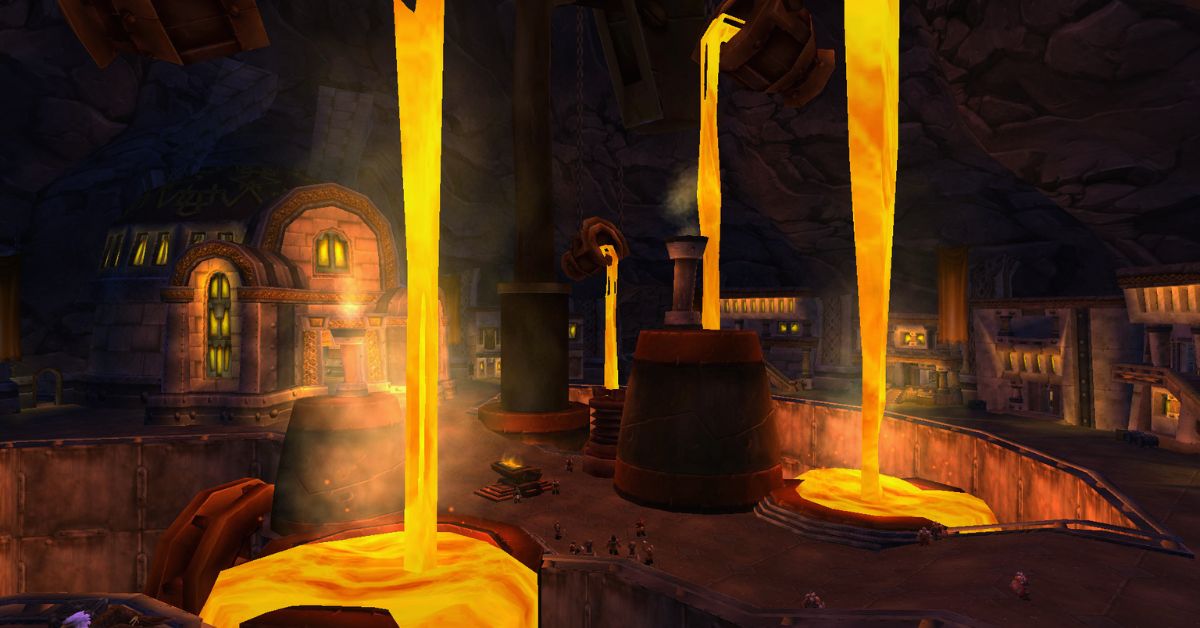
    Blacksmithing is one of the primary professions in World of Warcraft Classic, which allows you to create various metal items, such as armor, weapons, tools, and more.

    Blacksmithing is often paired with Mining, as you will need a lot of ores and bars to craft your items. Blacksmithing can also be specialized into Armorsmithing or Weaponsmithing, which will give you access to more advanced and powerful recipes.

    In this article, we will show you how to level up your Blacksmithing skill from 1 to 300 in Classic WoW, using the most efficient and cost-effective methods.

    We will also tell you where to learn Blacksmithing, what materials you will need, and what items you can craft at each skill level. If you follow this guide, you will be able to master the craft of metalworking and become a respected Blacksmith in Azeroth.

    Where to Learn Blacksmithing in Classic WoW?

    Blacksmithing Leveling Guide Classic
    Blacksmithing Leveling Guide Classic

    You can learn Blacksmithing from any of the Blacksmithing trainers located in the major cities or towns of each faction.

    You will need to be at least level 5 to learn Blacksmithing, and you will need to pay a small fee to learn each rank of the profession. Here are the locations of the Blacksmithing trainers for each faction:

    • Horde: You can learn Blacksmithing from Ug’thok in Orgrimmar, Basil Frye in Undercity, Thrag Stonehoof in Thunder Bluff, or Dwukk in Durotar.
    • Alliance: You can learn Blacksmithing from Groum Stonebeard in Ironforge, Dane Lindgren in Stormwind City, Delfrum Flintbeard in Darkshore, Smith Argus in Elwynn Forest, or Tognus Flintfire in Dun Morogh.

    You can also ask a guard in any city to point you to the nearest Blacksmithing trainer, and they will mark it on your map.

    What Materials Do You Need for Blacksmithing in Classic WoW?

    To level up your Blacksmithing skill, you will need a lot of materials, mostly ores and bars, which you can either mine yourself or buy from other players or the Auction House.

    You will also need some other materials, such as stones, gems, cloths, dyes, and coal, which you can also obtain from various sources. Here is a list of the approximate materials you will need to level up your Blacksmithing from 1 to 300:

    • 150x Rough Stone
    • 150x Copper Bar
    • 95x Coarse Stone
    • 5x Silver Bar
    • 140x Bronze Bar
    • 105x Heavy Stone
    • 5x Gold Bar
    • 230x Iron Bar
    • 35x Green Dye
    • 190x Steel Bar
    • 520x Solid Stone
    • 60x Mageweave Cloth
    • 250x Mithril Bar
    • 20x Dense Stone
    • 730x Thorium Bar
    • 30x Star Ruby
    • 5x Aquamarine

    If you want to mine the ores yourself, you can check out our Mining Leveling Guide Classic, which will show you the best places to farm each type of ore.

    How to Level Up Blacksmithing in Classic WoW?

    To level up your Blacksmithing skill, you will need to craft various items using the materials you have gathered or bought. You will also need to learn new recipes from your trainer or from other sources, such as vendors, quests, drops, or reputation rewards.

    You will need to pay attention to the color of the recipes, as they indicate how likely you are to gain a skill point from crafting them. The colors are as follows:

    • Orange: 100% chance to gain a skill point.
    • Yellow: 75% chance to gain a skill point.
    • Green: 25% chance to gain a skill point.
    • Gray: 0% chance to gain a skill point.

    You should always try to craft orange or yellow recipes, as they will give you the most skill points per craft. You can also craft green recipes if you have excess materials or if you want to sell the items for profit.

    You should avoid crafting gray recipes, as they will not give you any skill points and will only waste your materials.

    Here is a step-by-step guide on how to level up your Blacksmithing from 1 to 300 in Classic WoW, using the most efficient and cost-effective recipes. You can also check out the video guide¹ for a visual demonstration of the process.

    Blacksmithing Apprentice (1-75)

    To learn Blacksmithing Apprentice, you will need to pay 10 copper to your trainer. You will be able to level up your skill to 75, and learn new recipes every 5 skill points.

    • 1-30: Craft 40x Rough Sharpening Stone using 40x Rough Stone. You will need these later, so keep them in your bags.
    • 30-65: Craft 55x Rough Grinding Stone using 110x Rough Stone. Save 10 of these for later, and sell or vendor the rest.
    • 65-75: Craft 25x Coarse Sharpening Stone using 25x Coarse Stone.

    Blacksmithing Journeyman (75-150)

    To learn Blacksmithing Journeyman, you will need to pay 5 silver to your trainer. You will be able to level up your skill to 150, and learn new recipes every 10 skill points.

    • 75-87: Craft 13x Coarse Grinding Stone using 26x Coarse Stone. Save these for later, and make more if you run out.
    • 87-100: Craft 13x Runed Copper Belt using 130x Copper Bar.
    • 100-105: Craft 5x Silver Rod using 5x Silver Bar and 10x Rough Grinding Stone.
    • 105-125: Craft 20x Rough Bronze Leggings using 120x Bronze Bar.
    • 125-137: Craft 13x Heavy Grinding Stone using 39x Heavy Stone. Save these for later, and make more if you run out.
    • 137-150: Craft 13x Patterned Bronze Bracers using 65x Bronze Bar and 13x Coarse Grinding Stone.

    Blacksmithing Expert (150-225)

    To learn Blacksmithing Expert, you will need to pay 1 gold to your trainer. You will be able to level up your skill to 225, and learn new recipes every 15 skill points.

    • 150-155: Craft 5x Golden Rod using 5x Gold Bar and 10x Coarse Grinding Stone.
    • 155-165: Craft 10x Green Iron Leggings using 80x Iron Bar and 10x Heavy Grinding Stone.
    • 165-190: Craft 25x Green Iron Bracers using 150x Iron Bar and 25x Green Dye.
    • 190-200: Craft 10x Golden Scale Bracers using 50x Steel Bar and 20x Heavy Grinding Stone.
    • 200-210: Craft 10x Solid Grinding Stone using 40x Solid Stone.
    • 210-215: Craft 5x Golden Scale Bracers using 25x Steel Bar and 10x Heavy Grinding Stone.
    • 215-225: Craft 10x Steel Plate Helm using 150x Steel Bar and 10x Solid Grinding Stone.

    Blacksmithing Artisan (225-300)

    To learn Blacksmithing Artisan, you will need to pay 5 gold to your trainer. You will be able to level up your skill to 300, and learn new recipes every 20 skill points.

    • 225-235: Craft 10x Mithril Scale Bracers using 80x Mithril Bar.
    • 235-250: Craft 15x Mithril Coif using 150x Mithril Bar and 90x Mageweave Cloth.
    • 250-260: Craft 10x Dense Sharpening Stone using 10x Dense Stone.
    • 260-270: Craft 10x Thorium Bracers using 80x Thorium Bar.
    • 270-295: Craft 25x Imperial Plate Bracers using 150x Thorium Bar.
    • 295-300: Craft 5x Thorium Helm using 60x Thorium Bar and 5x Star Ruby.

    Conclusion

    Blacksmithing is a useful and profitable profession in Classic WoW, which allows you to create various metal items, such as armor, weapons, tools, and more. Blacksmithing can also be specialized into Armorsmithing or Weaponsmithing, which will give you access to more advanced and powerful recipes.

    In this article, we have shown you how to level up your Blacksmithing skill from 1 to 300 in Classic WoW, using the most efficient and cost-effective methods. We have also told you where to learn Blacksmithing, what materials you will need, and what items you can craft at each skill level.

    We hope this article has helped you master the craft of metalworking and become a respected Blacksmith in Azeroth. Thank you for reading, and happy gaming!.

    This is all there is to know about Blacksmithing Leveling Guide Classic. You can also read our Street Fighter 6 Character Guide and Diablo Immortal Familiar Guide. Stay up to date with GameEmpress.com for the most recent gaming news and guides.

  • Is Suicide Squad Crossplay? Uniting Heroes Across Platforms For Epic Battles

    Is Suicide Squad Crossplay? Uniting Heroes Across Platforms For Epic Battles

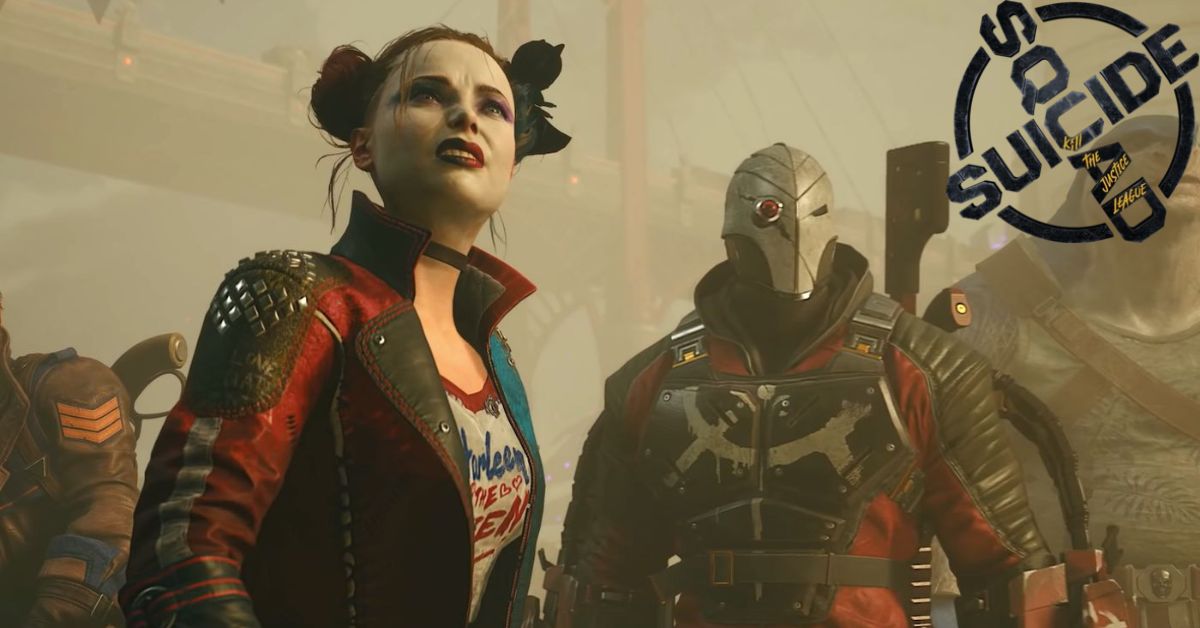
    Rocksteady Studios is set to release Suicide Squad: Kill the Justice League in early 2024, following years of anticipation. This publication has been welcomed with equal parts skepticism and excitement, as the continuation of the Arkhamverse is sacrosanct.

    With a new location, set of gameplay, and a story that is otherwise unfamiliar to those who have played the Batman: Arkham games, it’s not surprising that those looking into Suicide Squad: Kil the Justice League may be a little perplexed, and require a few answers to comfortably proceed into this new fight of DC Comics entertainment in video game format.

    Is Suicide Squad Crossplay?

    Suicide Squad: Kill the Justice League Game Delayed
    Suicide Squad: Kill the Justice League Game Delayed

    Suicide Squad: Kil the Justice League offers full crossplay across all platforms. Suicide Squad Kill the Justice League crossplay is shockingly simple, allowing you to set up multiplayer and cross-platform battles with pals as quickly as you write their names.

    There are a few caveats with progress and such, so let’s look at how to enable crossplay in Suicide Squad Kill the Justice League and invite friends.

    How to Use the Suicide Squad Kill the Justice League Crossplay?

    Finding and inviting people to join you is simple if you already know them from the platform you’re playing on. If that’s the case, they’ll just appear on the Friends tab under Social in the main menu while they’re online.

    I’ve played matches in which various Suicide Squad Kill the Justice League characters appeared. However, one of the copies was a bot, so it’s unclear how the two games combined squads.

    Assuming they are online and in-game, you can simply select their name and welcome them to your squad.

    If you wish to add a buddy who plays on a different platform, follow these steps to enable crossplay in Suicide Squad Kill the Justice League:

    • Navigate to Social in the menu, then Friends.
    • Use the Invite option located at the bottom of the screen.
    • Enter your friend’s name for the platform they are playing on.
    • If they are in-game on another platform, they will appear in the list with a shield icon next to their name.
    • After selecting them, you’ll be able to add them as a buddy and invite them to your squad.

    After you’ve located a friend and invited them to play, you’ll receive a warning about switching your session to a multiplayer server. If you lose your progress in the middle of a quest, you must retry it, but any character progression up to that point will be saved.

    When it comes to crossplay progression in Suicide Squad Kill the Justice League, you will keep any rewards or character progress you earn while playing with friends, but not story progression.

    So, if you accomplish a mission ahead of you by joining someone else’s more advanced game, you’ll still have to complete it when you return to your own game.

  • Is Skull And Bones Multiplayer? Your Pirate Crew Awaits!

    Is Skull And Bones Multiplayer? Your Pirate Crew Awaits!

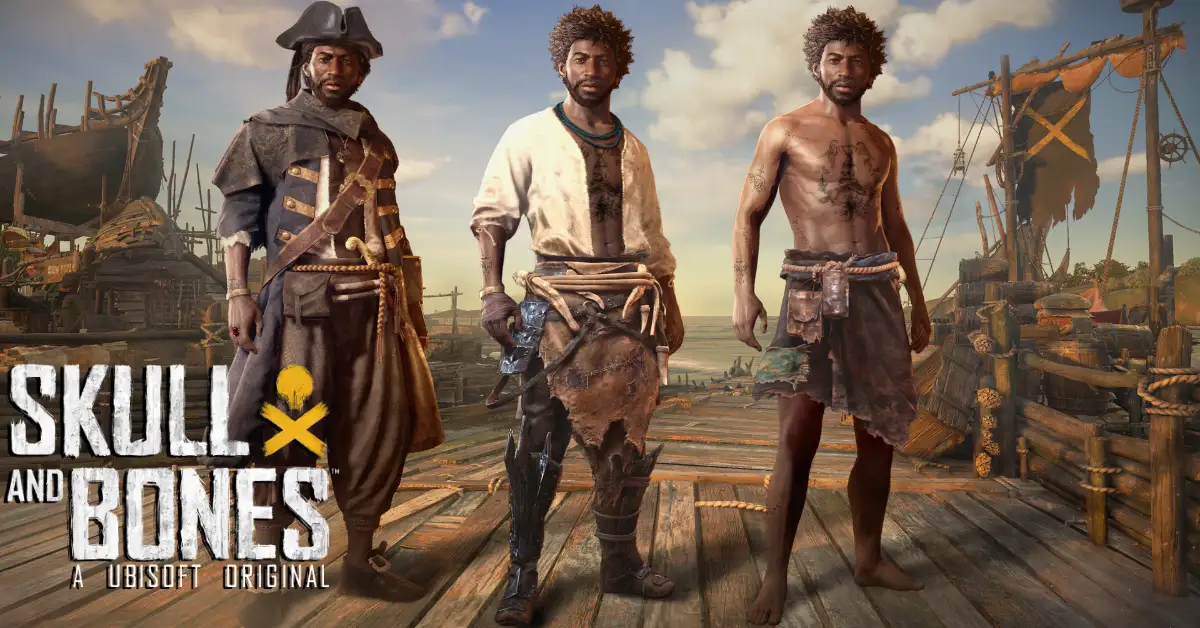
    Skull & Bones is finally available later this month, following years of delays and significant alterations to the game’s fundamental emphasis.

    From what we’ve seen so far, Skull & Bones appears to be relatively conventional open-world Ubisoft fare. You start as a shipwrecked pirate and work your way up to become a pirate legend.

    There are objectives to complete, hubs to explore, and plenty of ship customization options. What is evident is that the game’s scope and vision have shifted dramatically since its initial reveal.

    Is Skull And Bones Multiplayer?

    Sailing the high seas in Skull & Bones is simply more entertaining with a bunch of friends, whether through standard online multiplayer or cross-play. Skull & Bones contains both solo and multiplayer modes, but Ubisoft has stated that the new pirate title is intended to be a multiplayer-first game.

    While you can play multiplayer with players on your server, you can also invite friends to your lobby, regardless of which system they use.

    Skull & Bones supports full cross-play as well as cross-saves, allowing you to access your saves from any machine on which you own the game.

    The way cross-play and multiplayer operate in Skull & Bones is a little perplexing, so read the instructions below for a comprehensive rundown of the features.

    How Crossplay Works in Skull & Bones?

    To use it, first activate crossplay in Skull and Bones. This is accomplished by taking the following steps:

    • Open Skull & Bones and go to Settings.
    • Go to the Accessibility tab under Settings.
    • Scroll down until you reach the Cross-Play section.
    • Set cross-play to “On” by ticking the box, then leave the Settings.

    Once you’ve enabled crossplay, you can start adding friends from any platform to your lobby. The server you play on will also be packed with gamers from other platforms.

    How to add and invite friends in Skull and Bones?

    With cross-play enabled, you can now ask any other player to join you on the open seas. However, getting people into your lobby can be a bit difficult because there are several approaches to take.

    To begin, navigate to the “Social” tab in-game (Y on PC/Xbox, Triangle on PS5) and begin inviting gamers who are already on your friend’s list. This will primarily consist of players from the same platform as you. In the Social tab, select the “World” tab to view all of the players you’ve recently met on a server.

    You can select the name of a person to add here, and if they accept your request, you can invite them to join your game. You may also view all of your outstanding requests under the “Requests” area of the Social menu.

    If you wish to add a player who does not use the same platform as you, you must do so through their Ubisoft account. You’ll need a Ubisoft account to add and accept friend requests.

    There is currently no method to search for a player’s username in Skull and Bones, thus using Ubisoft Connect (either the app or the website) is the only option to add players who aren’t already on your friends’ list or server. So, if you want to add a friend who is on PS5 while you are on PC, you must both create a Ubisoft account, add each other, and then invite them to your lobby once they are on your friend list.

    If you want to allow anyone to join your lobby at any time, go to the Social menu and update your Privacy Options. On the “Group and Friends” page, you can change your privacy settings to “Open,” “Friends Only,” or “Invite Only.”

    If you want any player on your server to join your game, set this to Open. However, leaving it set to the other two settings assures that only friends can join your lobby.

    Speaking of which, Skull & Bones presently only allows for three lobbies to form. This implies you can have two other players in your party at the same time. In terms of servers, a maximum of 20 players can be on one at any given time.

    Once you’ve created your lobby, you can enter Skull and Bones with your complete party and sail the seas together. You can split up and do solo objectives or play the game together.

  • Helldivers 2 PC Requirements: Can Your PC Run The Co-op Shooter?

    Helldivers 2 PC Requirements: Can Your PC Run The Co-op Shooter?

    Helldivers 2 is the sequel to the acclaimed co-op shooter Helldivers, which was released in 2015 for PS4, PS3, PS Vita, and PC. The game was developed by Arrowhead Game Studios and published by PlayStation.

    Helldivers 2 will take you to the war-torn galaxy of Super Earth, where you will join the elite unit of Helldivers, who are tasked with defending the planet from the alien threats of the Cyborgs, the Bugs, and the Illuminates.

    You will be able to play the game solo or with up to three other players online, and experience the thrill of the procedurally generated missions, the friendly fire, and the permadeath.

    The game will also support cross-play and cross-progression between PC and PS5, meaning that you can play with your friends and keep your progress regardless of the platform.

    But before you enlist in the Helldivers, you need to make sure that your PC can run the game smoothly and without any issues. Helldivers 2 is a demanding game that requires a powerful PC to meet the minimum or recommended requirements.

    Helldivers 2 PC Requirements

    helldivers 2 crossplay
    helldivers 2 crossplay

    According to the game’s Steam page, these are the minimum and recommended PC requirements for Helldivers 2:

    Minimum PC Requirements

    • Requires a 64-bit processor and operating system
    • OS: Windows 10 x64
    • CPU: Intel Core i7-4790K (2.8 GHz 6 Core) / AMD Ryzen 5 1500X (3.8 GHz 4 Core) or equivalent
    • Memory: 8 GB RAM
    • Graphics: AMD Radeon RX 5700 (req. 6GB VRAM) / NVIDIA GeForce GTX 1080 (req. 6GB VRAM)
    • DirectX: Version 12
    • Storage: 100 GB available space
    • Sound Card: Windows Compatible Audio Device
    • Additional Notes: Playing on minimum requirements should enable play on Low/Medium quality settings in FullHD (1080p) in stable 30 FPS.

    Recommended PC Requirements

    • Requires a 64-bit processor and operating system
    • OS: Windows 11 x64
    • CPU: Intel Core i7-9700K (3.7 GHz 6 Core) / AMD Ryzen 7 3700X (3.8 GHz 6 Core) or equivalent
    • Memory: 16 GB RAM
    • Graphics: NVIDIA GeForce RTX 2080 (req. 6GB VRAM) / AMD Radeon RX 6700 XT (req. 6GB VRAM)
    • DirectX: Version 12
    • Storage: 100 GB available space
    • Sound Card: Windows Compatible Audio Device
    • Additional Notes: Playing on recommended requirements should enable play on Medium-quality settings in 60 FPS or High-quality settings in 30 FPS, in FullHD (or 4k using DLSS or similar technology).

    How to Optimize Your PC Performance for Helldivers 2?

    If your PC meets the Helldivers 2 PC requirements, but you still want to optimize your PC performance for the game, there are some tips you can follow:

    • Update your drivers: Make sure your drivers are up to date, especially your graphics card driver. You can use the official websites of your graphics card manufacturer, such as NVIDIA or AMD, to download and install the latest drivers for your graphics card.
    • Adjust your game settings: You can tweak your game settings to find the best balance between graphics quality and performance. You can lower some settings, such as resolution, anti-aliasing, shadows, textures, and effects, to improve your frame rate and reduce lag. You can also use the preset options, such as low, medium, high, or ultra, to quickly change your game settings.
    • Close unnecessary programs: You can close any programs that are running in the background and consuming your CPU, memory, or disk resources. You can use the Task Manager to see what programs are using your system resources, and end any tasks that are not needed for the game.
    • Use a game booster: You can also use game booster software, such as Razer Cortex, to optimize your PC performance for the game. A game booster can automatically close unnecessary programs, clear your RAM, and boost your FPS.

    Conclusion

    Helldivers 2 is an exciting and fun game that you can play on PC and PS5, solo or with your friends. The game will offer a thrilling and immersive experience, with stunning graphics, sound, and gameplay.

    However, the game will also require a powerful PC to run smoothly and without any issues. In this article, We have given you some tips on how to optimize your PC performance for the game.

    This is everything you need to know about Helldivers 2 PC Requirements. Additionally, you can check our guide on Star Wars Squadrons PC Requirement and F1 23 PC Requirement. Stay connected with GameEmpress.com to get the latest news and guides about the gaming world.